
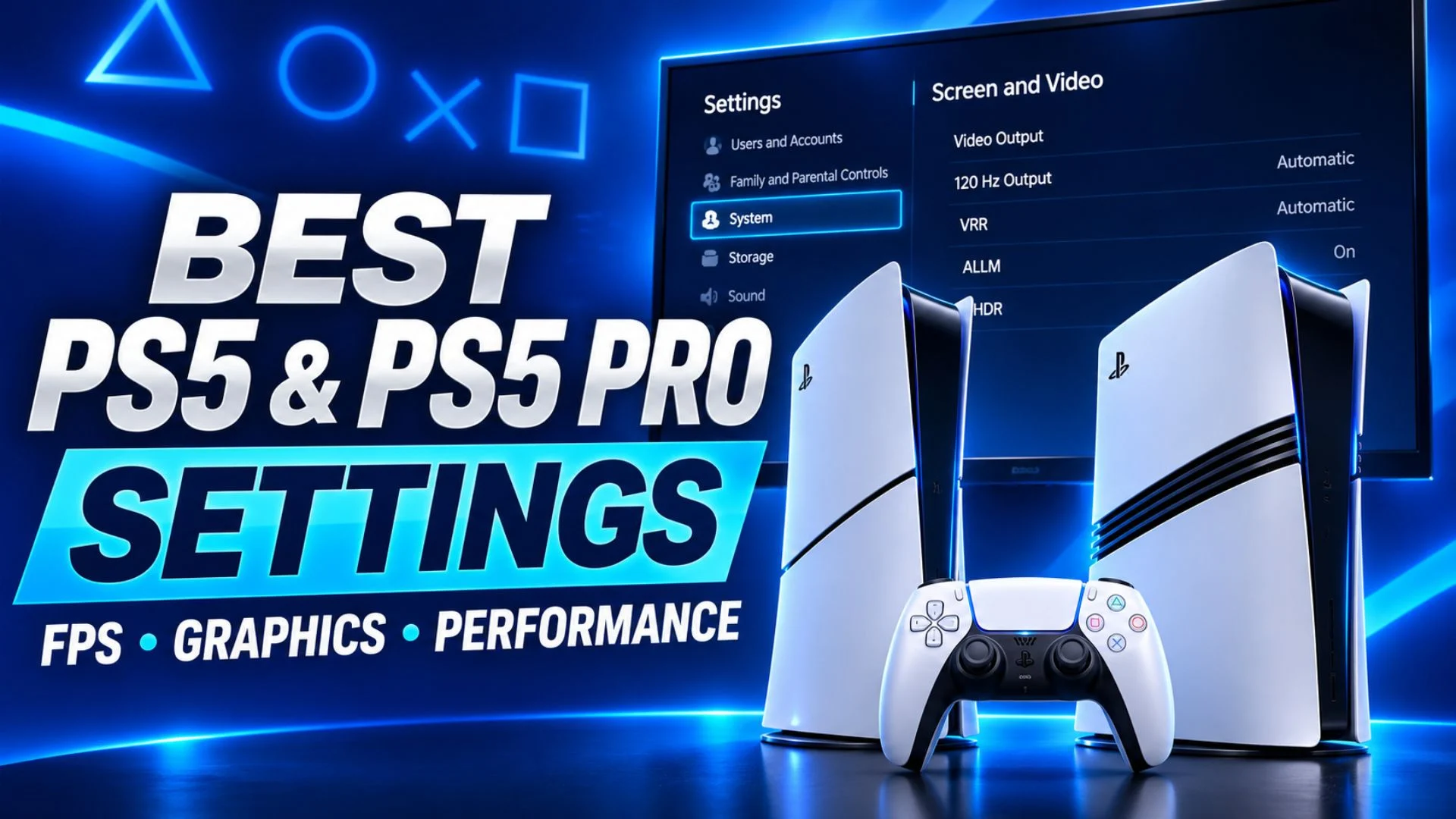

The best PS5 settings start with a simple rule: enable the display features your TV or monitor actually supports, then choose each game’s visual mode to suit your priority. For most players, set Resolution to Automatic, HDR to On When Supported, 120 Hz Output and VRR to Automatic, and ALLM to On. Choose Performance Mode if smoother motion matters most. None of those switches can make a game run at a frame rate or resolution it does not support.
These steps apply to standard PS5 and PS5 Pro unless a section says otherwise. Menu names reflect current PlayStation video-output guidance; update the console and check your TV’s HDMI settings before troubleshooting a missing option.
Best PS5 settings at a glance
| Setting | Recommended starting point | What you need or give up |
|---|---|---|
| Game Presets → Performance Mode or Resolution Mode | Performance Mode for responsive play; Resolution Mode for image detail | Only applies where a PS5 game offers those modes |
| Resolution | Automatic | 4K requires a 4K display and compatible HDMI path |
| 120 Hz Output | Automatic | 120 Hz display and game support; may change a game’s graphics mode |
| VRR | Automatic | Compatible display; results vary by game and TV |
| ALLM | On | Compatible TV; selects its low-latency mode |
| HDR | On When Supported; then Adjust HDR | HDR display; SDR games stay in SDR |
| Enhance PSSR Image Quality | On, the default | PS5 Pro only; affects compatible PSSR games |
| 3D Audio | Try the headphone profile or TV measurement | Compare with stereo and keep what sounds clearer |
| Power Saver for Games | Off when prioritizing performance | Supported games scale performance back when enabled |
Choose Performance Mode or Resolution Mode
Go to Settings → Saved Data and Game/App Settings → Game Presets → Performance Mode or Resolution Mode. Performance Mode favors smoother motion; Resolution Mode favors graphics quality. Start with Performance Mode for fast or competitive games, or Resolution Mode when you prefer detail and can accept a different frame rate. Then open the game’s own graphics menu and compare its actual modes. The preset applies only to PS5 games that offer the choice, and a game may provide additional options. It is a preference, not a console-wide FPS unlock. PlayStation explains the scope in its Game Presets guide.
Set 120 Hz output, VRR, and ALLM
120 Hz Output
Open Settings → Screen and Video → Video Output → 120 Hz Output and select Automatic. This permits 120 Hz output when both the display and game support it; it does not turn every 60 fps game into a 120 fps game. Check your TV or monitor’s supported refresh rate, the selected HDMI port, cable, and any receiver between the console and display. For 4K at 120 Hz, PlayStation recommends the included cable or an Ultra High Speed HDMI cable and a compatible display input. If a game produces a blank screen or other output trouble, turn 120 Hz Output off and check the HDMI chain. Some games trade image detail for a higher frame-rate mode.
Variable Refresh Rate (VRR)
At Settings → Screen and Video → Video Output → VRR, choose Automatic if your display supports VRR. VRR lets a compatible display vary its refresh rate with a supported game’s output, which can reduce visible tearing or uneven motion. It does not raise a game’s frame-rate cap. Apply to Unsupported Games is optional: try it only if you want VRR behavior in a game without official support, and turn it off if you see unexpected behavior. Results depend on the game and display. Check Information for the Connected HDMI Device in Video Output if the console does not report VRR support.
Auto Low Latency Mode (ALLM)
At Settings → Screen and Video → Video Output → ALLM, use On with a compatible TV. It asks the TV to switch to its low-latency gaming mode; the TV’s own settings determine what that mode changes. A TV does not necessarily support ALLM just because it has HDMI 2.1. PlayStation notes that VRR output can trigger low-latency mode even if ALLM is set to Off. Media apps do not receive the console’s ALLM signal. Use the TV’s manual to confirm support and check whether its game mode changes picture processing you prefer.
Calibrate HDR and check 4K video output
Go to Settings → Screen and Video → Video Output → HDR and choose On When Supported. This leaves non-HDR games and apps in SDR instead of converting them to HDR output. With an HDR-capable display, select Adjust HDR in the same menu and follow the on-screen brightness steps. If the image looks washed out, verify the TV’s HDR mode and HDMI input settings before changing console values. PlayStation provides the exact paths in its HDR setup guide.
For resolution, select Settings → Screen and Video → Video Output → Resolution → Automatic. The console then chooses the highest resolution the display reports. On a compatible 4K display, you can choose 2160p explicitly if needed. Use Current Video Output Signal and Information for the Connected HDMI Device in Video Output to check what the console is sending and what the display advertises. A 1440p monitor can use Test 1440p Output before you set Resolution to 1440p. Do not confuse a 4K HDMI signal with every game rendering internally at native 4K.
Leave Video Transfer Rate, Deep Color Output, and RGB Range at their automatic settings unless you are solving a specific compatibility problem. PlayStation says Video Transfer Rate −1 or −2 can resolve flicker but limits some 4K output formats, including 4K 120 Hz; forcing the wrong RGB range can also make blacks or highlights look wrong. The official video-output reference lists those limits.
Which graphics settings are exclusive to PS5 Pro?
Enhance PSSR Image Quality is a PS5 Pro setting at Settings → Screen and Video → Video Output → Enhance PSSR Image Quality. PlayStation says it is on by default and can improve image quality in certain games that already support PlayStation Spectral Super Resolution (PSSR). Leave it on as a starting point and compare a game’s image if you notice an issue. It is not a universal PSSR switch for every game, and PlayStation does not promise a fixed FPS increase. The upgraded PSSR rollout is described on PlayStation.Blog.
PS5 Pro also offers Enhance Image Quality for PS4 Games in Video Output. Try it for supported PS4 games on a 4K or 1440p screen, and turn it off if a game behaves unexpectedly. Allow 8K Output is another PS5 Pro-only option, requiring an 8K/60 Hz display with Display Stream Compression and a compatible game. It is unnecessary for a 4K setup, and PlayStation says VRR is disabled during 8K output. These options are listed for the CFI-7000 model group in the PlayStation display guide.
Standard PS5 now has a separate, game-specific technology called Quick Spectral Super Resolution (QSSR). It is offered inside supported games rather than through the PS5 Pro’s Enhance PSSR Image Quality toggle. PlayStation identified Marvel’s Wolverine and Ghost of Yōtei as its first QSSR games and later announced more. Check a game’s own graphics options; do not look for a system-wide PSSR setting on standard PS5. PlayStation’s QSSR announcement explains the distinction.
Use Game Presets for other preferences
Return to Settings → Saved Data and Game/App Settings → Game Presets to set default difficulty, first- and third-person camera inversion, subtitles and audio, and online multiplayer session preferences. Choose the options you actually want. These presets only apply to PS5 games, and individual games may not implement every preset. They do not replace a game’s accessibility or graphics menus.
Set up 3D Audio for your listening device
For headphones, open Settings → Sound → 3D Audio (Headphones). Enable 3D Audio for Headphones, then use Create Personalized 3D Audio Profile or select one of the presets. Listen to a familiar game and compare it with stereo; the best profile is the one that makes positions clear to you, not a universal number. For TV speakers, open Settings → Sound → 3D Audio (TV), follow the room-measurement instructions using the controller’s built-in mic, and compare stereo with 3D audio. Repeat the measurement if you move the TV or change seating. See PlayStation’s 3D Audio instructions.
Tune DualSense settings without performance myths
Open Settings → Accessories → Controller (General). Set Vibration Intensity and Trigger Effect Intensity to taste: strong effects add feedback in supported games, while lower settings may feel less distracting or reduce resistance. Adjust Volume (Speaker for Controller) if it competes with your main audio. These are comfort choices, not proven FPS boosts. Under Communication Method, keep Bluetooth unless the wireless signal is weak; then connect a USB cable and select Use USB Cable. A plugged-in controller left on Use Bluetooth still communicates wirelessly. Check DualSense Wireless Controller Device Software for controller updates. PlayStation documents these controls in its controller settings guide.
Choose a stable network connection
For a wired connection, connect a LAN cable and select Settings → Network → Settings → Set Up Internet Connection → Set Up Wired LAN → Connect. For Wi-Fi, use the same menu, select your network, and connect. A wired link can avoid local Wi-Fi interference, but it cannot guarantee a lower game-server ping; distance, congestion, and the service also matter. If you use Wi-Fi, compare a strong nearby network with the wired option rather than changing DNS or MTU on faith. PS5 Pro owners with a compatible access point can open that access point’s Advanced Settings → Multi-Link Operation, a CFI-7000-only option noted in PlayStation’s connection guide. Availability and results depend on the router and network.
Balance power saving and background convenience
At Settings → System → Power Saving → Set Time Until PS5 Enters Rest Mode, choose an inactivity period that suits how you play. Under Features Available in Rest Mode, enable Stay Connected to the Internet if you want background downloads and updates; set Supply Power to USB Ports only as long as you need controller charging. Those conveniences use more power in Rest Mode. On supported PS5 games, Settings → System → Power Saving → Power Saver for Games lets you enable Use Power Saver per game, but PlayStation says performance scales back and VR mode is unavailable while it is active. Leave it off when maximizing gaming performance. See PlayStation’s power settings guide.
Manage storage without deleting the wrong data
Open Settings → Storage to inspect free space by location. To remove an installed game, use Console Storage → Games and Apps, select the game, and choose Delete; check the selection before confirming. PlayStation says purchased games can be downloaded again. A compatible M.2 SSD can store and play PS5 games; use Settings → Storage → Installation Location to choose where new games install. To move an existing game, highlight it in Game Library, press Options, and choose Move Games and Apps. USB extended storage can hold PS5 games, but you must copy them back to console or M.2 SSD storage to play; PS4 games can run from USB extended storage. Consult PlayStation’s storage guide before deleting saved data.
Storage cleanup does not inherently raise a game’s FPS. If your console has persistent system glitches after checking updates and free space, our separate guide to clearing the PS5 cache and rebuilding its database safely explains those Safe Mode steps and precautions. For an M.2 purchase or installation, use our PS5 SSD upgrade guide.
PS5 settings FAQ
What are the best PS5 settings for FPS?
Set the Game Presets preference to Performance Mode, then select the game’s performance or high-frame-rate mode if it has one. Use 120 Hz Output on Automatic with a supported display and game. Neither setting overrides a game’s frame-rate cap.
Should VRR and 120 Hz be on together?
Yes, start with both on Automatic when your display supports them. VRR adjusts display refresh within supported conditions; 120 Hz Output permits compatible games to send a 120 Hz signal. Turn off a feature only if your display or a game has trouble with it.
Is PS5 Pro PSSR available on standard PS5?
No. The PS5 Pro system option Enhance PSSR Image Quality is exclusive to PS5 Pro. Standard PS5 can offer QSSR in individual supported games; it is a different implementation and does not expose the Pro toggle.
Should HDR be Always On or On When Supported?
On When Supported is the safer starting point because SDR-only content stays in SDR. Always On converts non-HDR games and apps to HDR output. Calibrate with Adjust HDR on an HDR-capable display and compare the result.
Does clearing storage, changing DNS, or disabling DualSense effects boost FPS?
PlayStation does not document those as general FPS upgrades. Use storage controls to make room, network settings to resolve connection issues, and controller settings for comfort. The game’s own graphics modes and supported display features are the relevant controls for visual performance.
Which setting made the clearest difference to your PS5 or PS5 Pro setup?
Comments
No comments yet. Be the first to share your thoughts.