

Last updated: September 2026
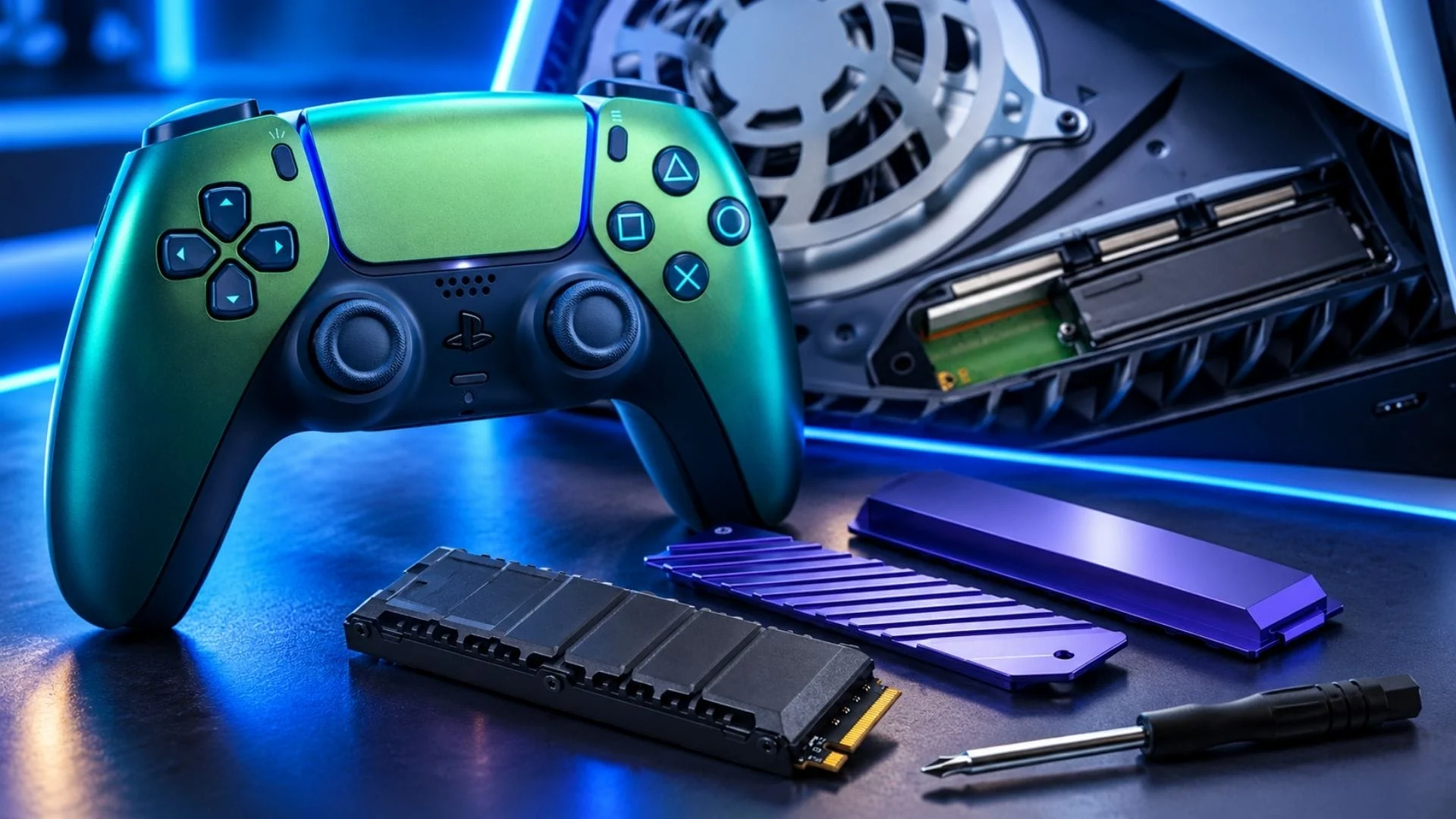
A PS5 SSD upgrade requires a PCIe Gen4 x4 M.2 NVMe drive with a Key M connector, 250GB to 8TB of capacity, a supported 2230–22110 length, and an effective heat-dissipation mechanism. Sony recommends a sequential read speed of 5,500MB/s or faster. Once installed and formatted, the drive can download, store, update, and run both PS5 and PS4 games directly.
The same basic requirements apply across the original PS5, PS5 Slim, PS5 Digital Edition, and PS5 Pro, although the cover-removal steps differ by model. Sony’s current M.2 SSD support guide separates the original CFI-1000 model group from the newer CFI-2000/7000 group, which covers PS5 Slim and PS5 Pro.
PS5 M.2 SSD requirements at a glance
| Specification | PS5 requirement or guidance |
|---|---|
| Interface | PCI Express Gen4 x4 M.2 NVMe SSD |
| Connector | Socket 3, Key M |
| Capacity | 250GB to 8TB |
| Supported form factors | 2230, 2242, 2260, 2280, and 22110 |
| Width with cooling structure | Up to 25mm |
| Length | 30mm, 42mm, 60mm, 80mm, or 110mm |
| Total thickness with cooling structure | Up to 11.25mm: no more than 8.0mm above the board and 2.45mm below it |
| Sequential read speed | 5,500MB/s or faster is recommended by Sony |
| Cooling | A heatsink or another effective heat-dissipation structure is required |
| Not supported | M.2 SATA SSDs |
Those measurements include the SSD and its heatsink or heat-transfer material. Check the assembled dimensions, not just the bare drive, before buying. Sony supports both single-sided and double-sided M.2 devices, but notes that a single-sided cooling structure is generally easier to fit.
What kind of SSD is compatible with PS5?
The safest shopping checklist is: PCIe Gen4 x4, NVMe, M.2, Key M, 250GB–8TB, a correctly sized heatsink, and a rated sequential read speed of at least 5,500MB/s. A listing that only says “M.2 SSD” is not enough. M.2 describes a physical form, and some M.2 drives use the unsupported SATA interface.
The five supported form-factor numbers describe width and length in millimeters. For example, 2280 means a drive that is 22mm wide and 80mm long. The PS5 bay accepts 2230, 2242, 2260, 2280, and 22110 drives, provided the complete drive-and-cooling assembly stays within Sony’s clearance limits.
Is 5,500MB/s a requirement?
Sony describes 5,500MB/s or faster as a recommendation, while PCIe Gen4 x4 NVMe, Key M, supported capacity, supported dimensions, and effective cooling are listed as compatibility requirements. That distinction matters: the speed figure is not worded as a hard minimum in Sony’s current support documentation.
For a straightforward purchase, choosing a model rated at or above Sony’s recommendation removes an avoidable uncertainty. Sony also warns that meeting the specifications does not guarantee every third-party SSD will work, and that games are not guaranteed to perform identically to the internal drive even when the add-on SSD’s advertised sequential speed exceeds 5,500MB/s.
Does PS5 support Host Memory Buffer SSDs?
The PS5 does not support Host Memory Buffer (HMB). Sony says HMB-capable drives may therefore deliver slower-than-expected performance. If a drive relies on HMB, check the manufacturer’s PS5 compatibility guidance rather than assuming its PC specifications will carry over unchanged.
Does a PS5 SSD need a heatsink?
Yes. Sony says an M.2 SSD used in a PS5 needs effective heat dissipation, such as a heatsink and heat-transfer sheet. You can buy a drive with a built-in heatsink or add a compatible cooling structure yourself. Do not operate the drive in the PS5 without one.
Do not stack an extra heatsink on a drive that already has an integrated one. Sony advises against this because it can reduce the built-in heatsink’s effectiveness, and the added thickness may stop the expansion-slot cover from closing.
Before installation, confirm the complete assembly is no wider than 25mm and no thicker than 11.25mm. Within that thickness, no more than 8.0mm may sit above the SSD board and no more than 2.45mm below it. If the metal bay cover will not close normally, do not force it; the cooling structure is probably too large or the drive is not seated correctly.
Does an M.2 SSD work with PS5 Slim and PS5 Pro?
Yes. Compatible M.2 expansion storage works with the original PS5 and PS5 Digital Edition, PS5 Slim models, and PS5 Pro. Sony identifies PS5 Slim as the CFI-2000 model group and PS5 Pro as CFI-7000. Its installation guide uses one procedure for CFI-2000/7000 consoles and another for the original CFI-1000 group.
PS5 Pro includes 2TB of internal SSD storage, but its M.2 expansion bay remains available. Adding an M.2 drive does not replace the built-in storage on any model; it adds another installation location.
Which capacity should you choose: 1TB, 2TB, 4TB, or 8TB?
The right size depends on how many large games you want installed at once, not on a performance hierarchy. Capacity alone does not make one compatible drive faster than another.
- 1TB: A sensible expansion for a smaller active library or for players who regularly delete completed games.
- 2TB: A flexible middle ground that gives a larger library room without jumping to the highest capacities. PS5 Pro owners should remember that the console already includes 2TB internally before deciding how much additional space they need.
- 4TB: Better suited to large installed libraries, households sharing one console, or players who want to reduce storage management.
- 8TB: Sony’s current maximum supported capacity. It is aimed at users who prioritize the largest possible local library; verify dimensions, cooling, and full PS5 compatibility just as carefully as with smaller drives.
Drives below 1TB are also supported down to 250GB, but the practical gain is limited once several modern games are installed. Whatever size you choose, compare the usable space you actually need with the total storage already built into your PS5 model.
How to install an M.2 SSD in a PS5
Update the PS5 system software before you begin. Work on a well-lit table with a soft protective surface and a #1 Phillips or cross-head screwdriver. Fully turn off the console—do not use Rest Mode—disconnect all cables, and let the system cool. Touch a grounded metal object to discharge static electricity, and never power on the console while its outer cover is removed.
Installation steps for PS5 Slim and PS5 Pro
- Confirm that you have a CFI-2000 or CFI-7000 console, then position it as shown in Sony’s model-specific guide.
- Remove the triangle cover.
- Unscrew and lift away the long expansion-slot cover.
- Remove the retaining screw and spacer. Place the spacer in the hole matching your SSD length: 30, 42, 60, 80, or 110mm.
- Hold the SSD by its edges. Align the connector notch, angle the drive upward, and insert it firmly all the way into the expansion connector.
- Lower the SSD onto the spacer and secure it with the retaining screw. Do not overtighten it.
- Replace the expansion-slot cover and its screw, then reinstall the triangle cover.
- Reconnect the feet, cables, and power. Turn on the console and follow the formatting prompt.
Installation steps for the original PS5
- With the console off, unplugged, and cool, remove the base. Place the PS5 on a protected flat surface with the PlayStation logo facing down and the power button facing you.
- Grip the upper-left corner of the cover, lift it slightly, and slide it to the right until it comes away.
- Remove the screw and the long expansion-slot cover.
- Move the spacer to the groove that matches the SSD’s length.
- Holding only the edges, align the notch and insert the SSD diagonally upward until it is fully seated.
- Lower the drive so its circuit board rests flush on the spacer, then secure it with the screw. Make sure the cooling structure does not obstruct the screw.
- Replace the metal expansion cover. Reinstall the outer cover by positioning it slightly below the top edge and sliding it into place until it clicks.
- Reconnect the base, cables, and power, then start the PS5 and format the drive when prompted.
Common installation mistakes to avoid
- Buying an M.2 SATA drive instead of a PCIe Gen4 x4 NVMe model.
- Using the SSD without a heatsink or heat-transfer structure.
- Checking the bare-drive dimensions but not the heatsink’s total height and width.
- Leaving the spacer in the wrong position, which can bend the SSD when the screw is tightened.
- Failing to insert the connector fully before lowering the drive.
- Forcing the expansion cover over an oversized heatsink.
- Working while the console is connected to power, still warm, or carrying static charge.
- Turning off the PS5 while it is formatting the SSD or saving data.
How formatting works
The first time the PS5 uses a newly installed M.2 SSD, an on-screen formatting guide appears at startup. Formatting erases everything already stored on the drive, and the erased data cannot be recovered. Back up anything important before installing a drive previously used in a PC or another device.
Follow the on-screen steps and keep the console powered on until formatting finishes. The PS5 may display a measured read-speed result afterward. This console test does not change Sony’s published compatibility requirements or replace the manufacturer’s specifications.
You cannot format only part of an M.2 SSD for PS5 use; the entire drive is formatted. An exception applies when moving an already-formatted M.2 SSD between PS5 consoles: Sony says it does not need to be formatted again, and games can be accessed when you sign in to the same account.
How to install and move games to M.2 storage
To make the M.2 SSD the destination for new downloads, go to Settings > Storage > Installation Location and choose the M.2 drive for the game type you want. Games downloaded from PlayStation Store can then install directly to it.
To move an existing game or app:
- Open Game Library from Games home.
- Highlight the game, press the Options button, and select Move Games and Apps.
- If both M.2 and USB extended storage are connected, open the Movable to M.2 SSD Storage tab.
- Select one or more items and choose Move.
To view free space or delete content, go to Settings > Storage > M.2 SSD Storage. A game cannot be split between internal and M.2 storage; all data for that game must stay in one location. Game save data is managed separately through console or cloud storage rather than the M.2 game-installation menu. Sony’s PS5 storage management guide explains which data types can use each location.
M.2 SSD vs. USB external storage on PS5
| Capability | Internal M.2 SSD | USB extended storage |
|---|---|---|
| Store PS5 games | Yes | Yes |
| Play PS5 games directly | Yes | No; copy them back to console or M.2 storage first |
| Install/download PS5 games directly to the drive | Yes | No — PS5 games can be stored there, but they must be moved back to console or M.2 storage for direct use. |
| Store PS4 games | Yes | Yes |
| Play PS4 games directly | Yes | Yes |
| Installation | Inside the console’s expansion bay | Connects to a compatible SuperSpeed USB port |
| Cooling requirement | Heatsink or equivalent heat dissipation required | Use the drive as designed by its manufacturer |
An internal M.2 SSD is the expansion option for keeping PS5 games immediately playable. A USB drive is useful as lower-priority storage because PS5 games can be archived there, but they must be copied back before launch. PS4 games can run directly from either M.2 or USB extended storage. See Sony’s USB extended storage guide for its current 250GB–8TB and SuperSpeed USB requirements.
Storage rules differ on Microsoft’s consoles, where optimized games depend on a proprietary expansion-card path. Our Xbox Series X|S storage expansion guide explains that system’s expansion card and USB options.
How to remove or replace a PS5 M.2 SSD
Move or delete any games you want to keep available before removing the drive. Then fully turn off the PS5, unplug every cable, wait for it to cool, and discharge static electricity. Remove the model-appropriate outer cover and the metal expansion-slot cover.
Remove the SSD retaining screw, lift the drive slightly, and pull it out diagonally by its edges. Do not pull straight up or touch the connector contacts. If you are leaving the bay empty, return the screw to the spacer, reinstall the slot cover, and replace the console cover. To install a replacement, reposition the spacer for the new drive’s length and follow the normal installation process. A new or previously non-PS5 drive will be erased when the console formats it.
What to do if the PS5 does not recognize the SSD
- Check the interface: Confirm the drive is PCIe Gen4 x4 NVMe with a Key M connector, not M.2 SATA.
- Update system software: Install the latest PS5 system update before troubleshooting the hardware.
- Power down safely: Turn the console completely off, unplug it, let it cool, and discharge static before reopening it.
- Reseat the drive: Remove the retaining screw, lift the SSD, and insert it diagonally until the connector is fully engaged. The board should lower flat onto the spacer.
- Check spacer placement: The spacer must sit in the hole matching the drive length. It should support the board rather than bend it.
- Measure the cooling assembly: An oversized heatsink can prevent proper seating or keep the bay cover from closing.
- Verify capacity and form factor: The drive must be 250GB–8TB and one of the supported 2230, 2242, 2260, 2280, or 22110 sizes.
- Ask the manufacturer: If every published requirement is met and the drive is still not detected, check for model-specific compatibility guidance or contact the SSD maker and PlayStation Support.
If the PS5 recognizes the SSD but one game has problems, pause active downloads, allow disc installations to finish, and try moving that game to the built-in console storage. Sony does not guarantee identical behavior in every title across all third-party drives.
PS5 SSD upgrade FAQ
Can PS5 games run directly from an M.2 SSD?
Yes. Compatible M.2 storage can download, store, update, and launch PS5 games directly. It can also run PS4 games and media apps.
Can PS5 games run directly from a USB external drive?
No. A USB extended-storage drive can archive PS5 games, but the game must be copied back to the internal SSD or compatible M.2 storage before it can launch. PS4 games can run directly from USB extended storage.
What is the largest SSD a PS5 supports?
Sony currently supports M.2 SSDs up to 8TB. The lower limit is 250GB.
Is 2280 the only supported M.2 size?
No. PS5 supports 2230, 2242, 2260, 2280, and 22110 form factors. The spacer must be positioned for the drive’s length, and the complete cooling assembly must fit the bay.
Can I use an SSD without a heatsink temporarily?
No. Sony explicitly says not to use an M.2 SSD in a PS5 without a heat-dissipation mechanism such as a heatsink or heat-transfer sheet.
Can I add a second heatsink to an SSD that already has one?
Sony recommends against it. Extra cooling hardware can interfere with the integrated heatsink and may exceed the bay’s clearance.
Can I reuse an SSD from a PC?
Yes, if it meets every PS5 interface, capacity, size, and cooling requirement. The PS5 will format the entire drive, permanently erasing its existing data.
Does installing an SSD void the PS5 warranty?
Sony says warranty coverage generally should not be affected when a compliant drive is installed correctly. Damage caused by using an unsuitable drive or failing to follow the instructions may not be covered, so verify the specification and follow the model-specific procedure.
Do I need to format an SSD moved from another PS5?
No. Sony says a PS5-formatted M.2 drive can be moved to another PS5 without reformatting. Sign in to the same account to access the games stored on it.
Can saved games be moved to the M.2 SSD?
The M.2 expansion is for games, apps, and related installation data. PS5 saved data remains managed through console storage and PlayStation Plus cloud storage.
Which capacity are you considering for your PS5 SSD upgrade, and what is driving your choice?
Comments
No comments yet. Be the first to share your thoughts.