

Last updated: September 2026.
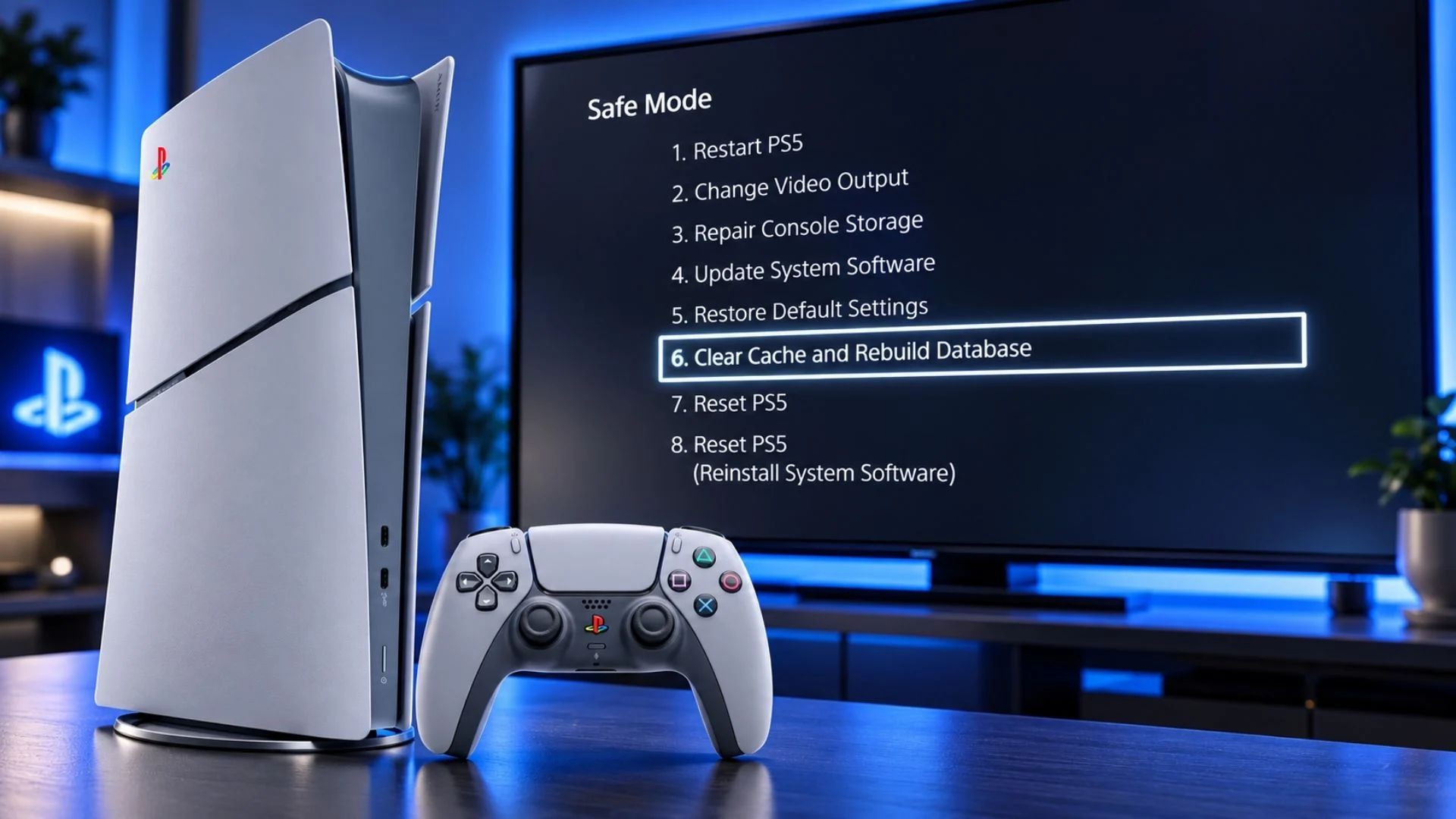
To clear the cache on a PS5, turn the console off completely, hold the power button until the second beep, connect the DualSense controller by USB, and press the PS button. In Safe Mode, choose Clear Cache and Rebuild Database, then Clear System Software Cache. This maintenance option does not remove your installed games or saved data.
The same Safe Mode menu also contains Rebuild Database, but it does a different job. Cache clearing removes temporary system software data. Rebuilding the database scans the console’s storage and creates a fresh index of the content it finds. Neither option is a guaranteed repair, and neither should be confused with the destructive Reset PS5 commands lower in the menu.
Clear Cache vs. Rebuild Database on PS5
| Option | What it does | When to try it | Deletes games or saves? |
|---|---|---|---|
| Clear System Software Cache | Removes temporary system software cache data so the PS5 can rebuild it | System menus behave oddly, performance drops, or a temporary interface problem persists after a restart | No |
| Rebuild Database | Scans storage and creates a new database of the content on the system | Content appears incorrectly, a deleted game’s icon remains on Home, or system-feature problems continue | No |
Sony’s official PS5 Safe Mode guide recommends Clear System Software Cache for system-feature issues or performance drops. It describes Rebuild Database as a storage scan that creates a new database of the system’s content and specifically notes the example of a deleted game icon remaining on the Home screen.
Before You Start
- Back up important data. Clear Cache and Rebuild Database are maintenance tools, not reset tools, but a current backup is sensible before any system troubleshooting. Sony provides an official PS5 backup guide for USB storage, and PlayStation Plus members can also check their cloud-save synchronization.
- Finish downloads and close games. Start from a normal shutdown rather than entering Safe Mode while other work is in progress.
- Use a compatible USB cable. Safe Mode requires the controller to be connected to the console by USB. If the controller is not recognized, try a cable known to carry data rather than a charge-only cable.
- Keep power stable. Do not unplug the console while it is clearing the cache, scanning storage, restarting, or showing an on-screen progress indicator.
- Read the selected option carefully. Reset PS5 and Reset PS5 (Reinstall System Software) delete user data. They are not part of this guide’s routine maintenance steps.
These steps apply to the original PS5 hardware, the PS5 Slim models, and PS5 Pro. The power button’s physical position varies by model and orientation, but the shutdown, second-beep, USB-controller, and Safe Mode process is the same.
How to Enter PS5 Safe Mode
- Turn off the PS5 completely by holding its power button for about three seconds. The power indicator blinks before switching off.
- After the console is fully off, press and hold the power button again.
- Keep holding through the first beep and release the button after the second beep, which Sony says sounds about seven seconds later.
- Connect a DualSense wireless controller to the PS5 with a USB cable.
- Press the PS button on the controller.
You should now see the numbered PS5 Safe Mode menu. Safe Mode starts the console with only its basic functions, which helps separate a system-level problem from behavior caused during a normal startup.
How to Clear the Cache on PS5
- Enter Safe Mode using the steps above.
- Select 6. Clear Cache and Rebuild Database.
- Select 1. Clear System Software Cache.
- Confirm the on-screen prompt and allow the PS5 to complete the process and restart.
Clearing the cache is the lighter first step. Try it when the dashboard or other system features feel sluggish, menus fail to update correctly, or a temporary system behavior returns after a normal restart. The PS5 recreates the temporary data it needs afterward, so the first launch of a screen or feature may not behave exactly as it did before the cache was cleared.
Does clearing the PS5 cache delete games or saved data?
No. Clear System Software Cache is not one of the data-erasing reset options. It does not uninstall games, remove captures, or delete saved data. Still, always confirm that you selected Clear System Software Cache and not either Reset PS5 option.
How to Rebuild the PS5 Database
- Turn off the PS5 and enter Safe Mode.
- Connect the DualSense controller by USB and press the PS button.
- Select 6. Clear Cache and Rebuild Database.
- Select 2. Rebuild Database.
- Confirm the prompt, then leave the console powered and connected until the scan and restart finish.
Rebuild Database scans the drive and recreates the database the PS5 uses to organize its content. It does not reinstall the operating system, defragment the SSD in the old PC sense, or add more storage space. If storage capacity is the actual problem, our PS5 SSD upgrade guide covers compatible M.2 drives, heatsinks, installation, formatting, and storage management.
Does rebuilding the PS5 database delete games or saves?
No. Rebuild Database is intended to re-index content rather than erase it. Sony separately identifies Reset PS5 as the option that deletes all user data, while Reset PS5 (Reinstall System Software) deletes user data and removes the system software. Do not choose either reset option when your goal is only to rebuild the database.
How long does rebuilding the PS5 database take?
Sony does not publish one fixed completion time. The duration varies with the amount of content on the console and connected storage, the storage state, and the issue being addressed. A database rebuild can take considerably longer than a cache clear. Follow the on-screen progress and do not interrupt power simply because it takes longer than expected.
When Should You Use Each Option?
Try Clear System Software Cache first when:
- PS5 system menus or cards respond inconsistently.
- You notice a system-feature problem or a performance drop that survives a normal restart.
- The console repeatedly starts in Safe Mode; Sony’s troubleshooting page specifically recommends clearing the system software cache after a full power cycle in that situation.
- You want to rule out stale temporary system data before taking a broader troubleshooting step.
Try Rebuild Database when:
- A deleted game’s icon remains on the Home screen.
- Installed content appears incorrectly organized or is not represented properly in the interface.
- A game-start or system-feature issue persists after simpler steps such as restarting, checking updates, and clearing the cache.
- PlayStation Support or a specific PlayStation error-code page directs you to rebuild the database.
If only one game is failing, first check that game’s update, license, local installation, and service status. A database rebuild is a system-wide organizational scan; it cannot repair a publisher’s offline servers or guarantee that damaged game files, account problems, network faults, or failing hardware will be fixed.
What These Options Cannot Fix
Cache clearing and database rebuilding are useful diagnostic steps, not universal performance boosters. They will not increase the PS5’s hardware capability, improve an internet connection, restore a suspended online service, repair a damaged HDMI cable, recover an account, or create free storage capacity. They also cannot guarantee a fix for corrupted system software or a physical storage fault.
If a controller problem is your main issue during normal use, rebuilding the database is unlikely to improve battery health. Our PS5 controller battery life guide explains charging checks, DualSense settings, and when repair or replacement may be appropriate.
If PS5 Safe Mode Will Not Start
Sony says a failure to display Safe Mode can point to a USB, HDMI, or power-cable problem. Check that the console is fully off, repeat the second-beep sequence, reseat the HDMI connection, and try another USB, HDMI, or power cable one at a time. If the console still will not enter Safe Mode, Sony recommends a full power cycle:
- Hold the power button until the console beeps and switches off.
- Disconnect the power cable.
- Leave the console unplugged for 20 minutes.
- Reconnect power and try Safe Mode again.
The full procedure is available on PlayStation’s Safe Mode troubleshooting page. If Safe Mode remains inaccessible, use PlayStation Repairs rather than jumping to a reset command.
What to Do If the Problem Continues
- Restart the console normally and reproduce the issue once.
- Check for PS5 system software and game updates.
- Confirm PlayStation Network and the game’s own service status if the problem is online.
- For one affected game, consider restoring licenses or reinstalling that game after confirming your saved data is backed up.
- If the PS5 does not start correctly or reports storage trouble, consider Repair Console Storage; Sony says this Safe Mode option does not erase data.
- Use Update System Software if an update failed or the console has been offline for a long time. Follow Sony’s Safe Mode update instructions.
- Contact PlayStation Support or use PlayStation Repairs if errors continue, Safe Mode is unavailable, or you suspect hardware failure.
Warning: Reset PS5 and Reset PS5 (Reinstall System Software) delete user data. The reinstall option also removes the PS5 system software. Back up what you can and follow Sony’s dedicated instructions before considering either destructive option.
Common Mistakes to Avoid
- Using PS4 directions and selecting the wrong menu item. This guide is specifically for PS5.
- Releasing the power button after the first beep instead of waiting for the second.
- Trying to navigate Safe Mode wirelessly without first connecting the controller by USB.
- Assuming every USB cable supports controller data.
- Choosing Reset PS5 because it appears close to the maintenance options.
- Interrupting power during a database scan.
- Expecting a cache clear or database rebuild to solve network outages or physical hardware damage.
PS5 Cache and Database FAQ
Can I clear the PS5 cache without Safe Mode?
The dedicated Clear System Software Cache command is inside PS5 Safe Mode. A normal restart is still worth trying first, but it is not the same menu action.
Should I clear the cache or rebuild the database first?
For a general system-feature issue or performance drop, start with Clear System Software Cache because it is the narrower maintenance step. Use Rebuild Database when the console’s content index appears wrong or the problem persists and the symptom fits Sony’s guidance.
Will rebuilding the database improve PS5 performance?
It may correct performance symptoms caused by a disordered content database, but it is not a guaranteed speed boost. It does not upgrade the hardware or optimize every game.
Can I rebuild the database with an M.2 SSD installed?
Yes. Rebuild Database is designed to scan system content, including the storage configuration the PS5 recognizes. Keep the console powered throughout the operation and investigate the M.2 installation separately if the drive itself is not detected.
Why will my controller not work in Safe Mode?
Safe Mode requires a USB connection. Reseat the cable, try another console USB port, and use a cable that supports data. Then press the PS button after the cable is connected.
Is Clear Cache and Rebuild Database the same as factory reset?
No. They are maintenance choices grouped under option 6. The destructive factory-reset choices are separate options 7 and 8 in the PS5 Safe Mode menu.
Which PS5 issue are you trying to solve with the cache or database tools?
Comments
No comments yet. Be the first to share your thoughts.