
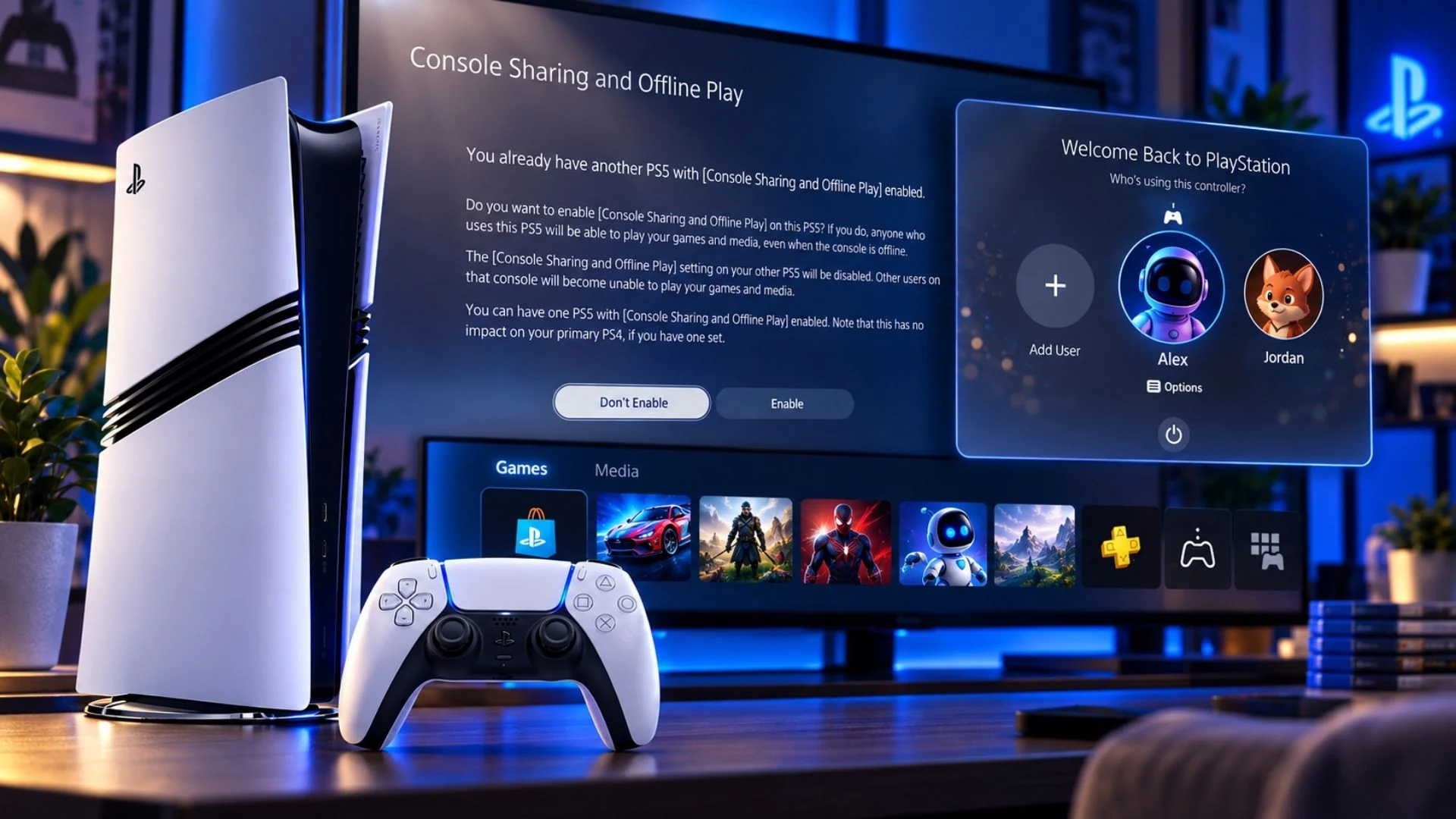

To gameshare on PS5 using Sony’s official system, sign in with the account that owns the games, then open Settings > Users and Accounts > Other > Console Sharing and Offline Play and select Enable. Other profiles on that PS5 can then play eligible downloaded digital purchases and use selected PlayStation Plus benefits. The account can enable this feature on only one PS5 at a time.
Last updated: September 28, 2026.
“Game sharing” is the common name players use, but Sony calls the feature Console Sharing and Offline Play. It is a console activation setting, not a password-sharing program. The safest setup is for the account owner to sign in personally on a trusted PS5, enable the setting, download the games, and keep the account credentials private.
PS5 Console Sharing and Offline Play at a glance
| Feature or limit | What applies on PS5 |
|---|---|
| Enabled PS5 consoles per account | One at a time |
| Purchased digital games | Other users on the enabled PS5 can play downloaded purchases |
| Offline play | Eligible downloaded games and media can be used offline on the enabled PS5 |
| Other local users | They use their own profiles, saves, trophies, and parental-control settings |
| Online multiplayer | Shareable from an active PlayStation Plus membership, subject to parental controls |
| PlayStation Plus Monthly Games | Downloaded Monthly Games can be shared while the owner’s membership and the game license remain valid |
| Game Catalog and Classics Catalog | Downloaded catalog games can be shared when included in the owner’s membership plan and still available |
| Cloud storage | Not shared; each account needs its own access |
| PlayStation Store discounts | Not shared for purchases; only the member account receives the discount at checkout |
| Game trials | Early access to time-limited trials is not shared |
| Primary PS4 compatibility | One primary PS4 can remain active alongside one Console Sharing-enabled PS5 |
What PS5 game sharing actually does
Console Sharing and Offline Play links one PS5 to a PlayStation account for console-wide access. When it is enabled, anyone using that PS5 can play games and media the owner purchased and downloaded, including while the console is offline. Other users do not need to play through the owner’s profile; they can use their own accounts and keep separate saves and trophies.
The setting does not merge libraries, transfer ownership, or give another account a permanent copy. The license still belongs to the purchasing account. Access can disappear if the owner changes the enabled PS5, the PlayStation Plus membership ends, a catalog title leaves the service, the owner removes the content, or a game has its own online requirement.
Physical games work differently. Console Sharing does not turn a disc into a digital license. A disc-based game still requires the correct disc in a compatible console whenever the game checks for it.
How to enable Console Sharing and Offline Play
- Use the account that owns the content. Sign in on the PS5 with the PlayStation account that purchased the games or holds the PlayStation Plus membership. The account owner should enter their own credentials instead of sending a password to somebody else.
- Download the games. Open Game Library on the owner’s account and download the titles you want available on the console.
- Open the activation setting. Go to Settings > Users and Accounts > Other > Console Sharing and Offline Play.
- Select Enable. If the button says Disable, the feature is already active on that PS5.
- Switch to the other user. The second player can return to their own local profile and launch eligible installed games from there.
Sony says the feature is automatically allowed on the first PS5 used to sign in to PlayStation. It is still worth checking the setting, especially after replacing a console, signing in on a second PS5, restoring the system, or seeing padlock icons.
What can another account play on the shared PS5?
Another user on the enabled PS5 can play downloaded digital games purchased by the sharing account. The owner does not need to remain actively signed in while the other local profile plays, and eligible downloads can work offline because the console itself holds the sharing activation. Do not delete the owner’s user from the console, however; removing accounts or content can disrupt access.
Two separate accounts can use the same shared library, but “can two people play the same game?” needs a little precision:
- On one PS5, each account can launch the shared game separately. Simultaneous local play depends on whether the game supports couch co-op or local multiplayer.
- Across two PS5 consoles, the enabled PS5 grants access to its local users while the owner may sign in on another PS5 and use their own library with an internet connection for license verification. Sony’s support documentation does not guarantee simultaneous two-console use of one digital license, and individual games or online services may impose additional restrictions.
Enabling Console Sharing does not log the owner out of another console. It changes which PS5 receives console-wide and offline access. Signing out inaccessible devices is a separate security action.
How PlayStation Plus sharing works
An active PlayStation Plus member can share selected benefits on the one PS5 where Console Sharing and Offline Play is enabled. Sony’s current PlayStation Plus sharing guide identifies four shareable groups:
- Online multiplayer, subject to parental controls.
- Downloaded games bought using a PlayStation Plus discount.
- Downloaded PlayStation Plus Monthly Games.
- Downloaded games from the Game Catalog and Classics Catalog, depending on the owner’s membership plan.
The second account does not need its own PlayStation Plus membership merely to use these shared benefits on that PS5. The subscribing account must remain active, though. Monthly Games require the owner to have claimed them, and catalog access can end when a title leaves the service or the relevant membership tier is no longer active.
PlayStation Plus benefits that are not shared
Console Sharing is not a duplicate subscription. These benefits remain tied to the member account:
- Buying products with a PlayStation Plus discount.
- Redeeming Monthly Games on another account.
- Online storage and cloud-save uploads or downloads.
- Automatic patch downloads.
- Early access to time-limited game trials.
In practical terms, the second user can play an eligible installed Monthly Game or catalog download, but cannot claim that game into their own library, use the member’s cloud saves, or shop with the member discount from their own account.
Child and family accounts
Selected PlayStation Plus benefits can be shared with child family members on the enabled PS5. Age ratings and the family manager’s parental controls still apply, so a child account may be unable to start a game even though its license is available. Online multiplayer sharing is also subject to those controls. Check PS5 family and parental-control settings before treating a blocked title as a license problem.
Console Sharing is not Share Play
| Console Sharing and Offline Play | Share Play |
|---|---|
| Activates one PS5 for local library sharing and offline access | Creates a live remote session with one visitor |
| Works with other user profiles on the enabled console | Streams the host’s active game screen over the internet |
| Can provide ongoing access to eligible installed games | Each session lasts up to one hour |
| Does not require the owner to keep playing the game | The host starts the Share Play session and can let the visitor take control or play together. Simply watching another player’s gameplay is handled separately through Share Screen. |
| One PS5 activation per account | One visitor per session |
Share Play is designed for a temporary remote visit. The host needs PlayStation Plus to start Share Play; both host and visitor need PlayStation Plus for the mode that lets them play together. Console Sharing, by contrast, is the account’s PS5 activation for local users, downloaded purchases, selected subscription benefits, and offline access.
PS5 Console Sharing versus Primary PS4
“Primary PS4” is the official PS4 activation term. PS5 does not have a menu item called “Primary PS5”; its equivalent setting is Console Sharing and Offline Play. Guides that tell you to “make a PS5 primary” are usually describing this setting with unofficial shorthand.
The activation limits are separate. One account can have Console Sharing enabled on one PS5 and also keep one PS4 activated as its primary PS4. Enabling the PS5 feature does not cancel the primary PS4 activation. Sony confirms the one-PS5 and one-PS4 limits in its console activation guide.
Can you enable game sharing on two PS5 consoles?
No. One PlayStation account can enable Console Sharing and Offline Play on only one PS5 at a time. You can sign in to the account on other PS5 consoles, but only the enabled console gives other local users access and supports the account’s eligible digital games offline.
When moving the activation, disable the old PS5 first:
- On the old console, go to Settings > Users and Accounts > Other > Console Sharing and Offline Play.
- Select Disable.
- On the new PS5, follow the same path and select Enable.
After the change, other profiles on the old PS5 lose the sharing and offline rights from that account. The account and its data are not deleted.
How remote deactivation works
If the old PS5 is lost, sold, or inaccessible, sign in to PlayStation Account Management on the web and select Device Management > PlayStation Consoles > Deactivate All Devices. Sony allows remote deactivation only once every six months, and it deactivates all consoles rather than one selected device.
Remote deactivation is not the same as signing out. If an inaccessible console may still have your account, change the account password or secure the account with a passkey or two-step verification. Never give another person your password, passkey, backup codes, or payment details just to share a game.
Why a shared PS5 game shows a padlock
A padlock normally points to license ownership, subscription, activation, or network verification—not necessarily a damaged installation. Work through these checks in order:
| Problem | What to check |
|---|---|
| Padlock beside the game | Confirm the purchasing account, active subscription, current catalog availability, and Console Sharing setting; then restore the license |
| Game works for the owner but not another user | Make sure the owner enabled Console Sharing on this exact PS5 and the game is downloaded |
| Console Sharing will not enable | Disable the previous PS5, check PlayStation Network status, update system software, restart the console and router, and retry |
| PlayStation Plus title stopped working | Verify the owner’s membership, required tier, Monthly Game claim, and whether the catalog title is still offered |
| Child account cannot launch the game | Check age rating, allowed games, and family parental controls |
| Activation changed after replacing a console | Disable the old PS5 or use remote Deactivate All Devices if the console is inaccessible |
How to restore licenses on PS5
Sony’s current license-restoration instructions are:
- Sign in with the account that owns the game.
- Go to Settings > Users and Accounts > Other > Restore Licenses.
- Select the licenses you want to restore.
You can also highlight a game on the home screen or in Game Library, press the Options button, and select Restore License. Restoring licenses does not erase saves, installed games, or other data.
If restoring licenses does not fix the game
- Verify the game appears in the purchasing account’s transaction history.
- Confirm the PlayStation Plus subscription is active and the title still belongs to the applicable Monthly Games, Game Catalog, or Classics Catalog access.
- Check PlayStation Network status for an outage.
- Update PS5 system software and restart the console.
- Confirm Console Sharing is enabled by the account that owns the content—not merely by the account trying to play it.
- As a later troubleshooting step, use Safe Mode to clear the system software cache or rebuild the content database. Follow our PS5 Safe Mode cache and database guide to choose the correct non-destructive option.
If the game still will not launch, use PlayStation Support’s downloaded-game troubleshooting guide and provide the exact error code, time of failure, and steps that reproduce it.
Common PS5 game-sharing mistakes
- Enabling the setting on the wrong account. The account that owns the game or subscription must enable Console Sharing.
- Expecting two enabled PS5 consoles. The limit is one PS5 per account, regardless of how many consoles the account can sign in to.
- Confusing access with ownership. The second account can use eligible content but does not own it or receive a permanent license.
- Assuming every PlayStation Plus feature transfers. Cloud saves, store discounts, redemptions, auto patching, and game-trial access remain account-specific.
- Ignoring catalog changes. A downloaded Game Catalog or Classics Catalog title can stop working when it leaves the service.
- Trying to share a disc without the disc. Console Sharing applies to digital licenses; disc authentication still requires the physical disc.
- Blaming every padlock on game sharing. A network outage, expired membership, wrong purchasing account, removed catalog title, or stale license can produce the same symptom.
- Sharing credentials. The official feature does not require handing over permanent access to a PlayStation account. Protect sign-in and payment information.
PS5 game sharing FAQ
How do I gameshare on PS5?
On the account that owns the games, go to Settings > Users and Accounts > Other > Console Sharing and Offline Play, then select Enable. Download the games through the owner’s library; other profiles on that PS5 can then launch eligible titles.
Can purchased PS5 games be played by another account?
Yes. Other users on the Console Sharing-enabled PS5 can play eligible downloaded digital purchases with their own profiles. The purchasing account keeps ownership.
Can you gameshare on two PS5 consoles?
Not with console-wide and offline access. Each account can enable Console Sharing and Offline Play on one PS5 at a time.
Does PS5 game sharing work offline?
Yes on the enabled PS5 for eligible downloaded games and media. A title that inherently requires an online connection still needs one, and a non-enabled PS5 may need the owner online for license verification.
Does the other account need PlayStation Plus?
Not for the selected benefits Sony allows the member to share on the enabled PS5, including online multiplayer and eligible downloaded PlayStation Plus games. Account-specific features still require the second account’s own membership.
Can PlayStation Plus cloud saves be shared?
No. Online storage is tied to the subscribing account. Each profile maintains its own saves and needs its own cloud-storage access to upload them.
Can PlayStation Store discounts be shared?
No. A game bought by the member at a discount can be shared after download, but another account cannot use the member discount for its own checkout.
Why is there a lock icon on a shared game?
Check the purchasing account, Console Sharing activation, subscription status, catalog availability, network status, and licenses. Restore the license from Settings > Users and Accounts > Other > Restore Licenses.
Does enabling Console Sharing log the other PS5 out?
No. Activation and sign-in are separate. Changing the enabled PS5 removes console-wide and offline sharing from the old PS5, but it does not by itself sign the account out or delete data.
Can I have a primary PS4 and a shared PS5 at the same time?
Yes. Sony allows one primary PS4 and one PS5 with Console Sharing and Offline Play enabled on the same account at the same time.
Is Share Play the same as game sharing?
No. Share Play is a temporary, internet-based session in which one visitor watches or interacts with the host’s active game. Console Sharing is the one-PS5 activation that provides eligible local users with downloaded library access and selected subscription benefits.
Which part of PS5 game sharing has caused you the most confusion: console activation, PlayStation Plus benefits, or locked-game licenses?
Comments
No comments yet. Be the first to share your thoughts.