

Last verified: September 19, 2026.
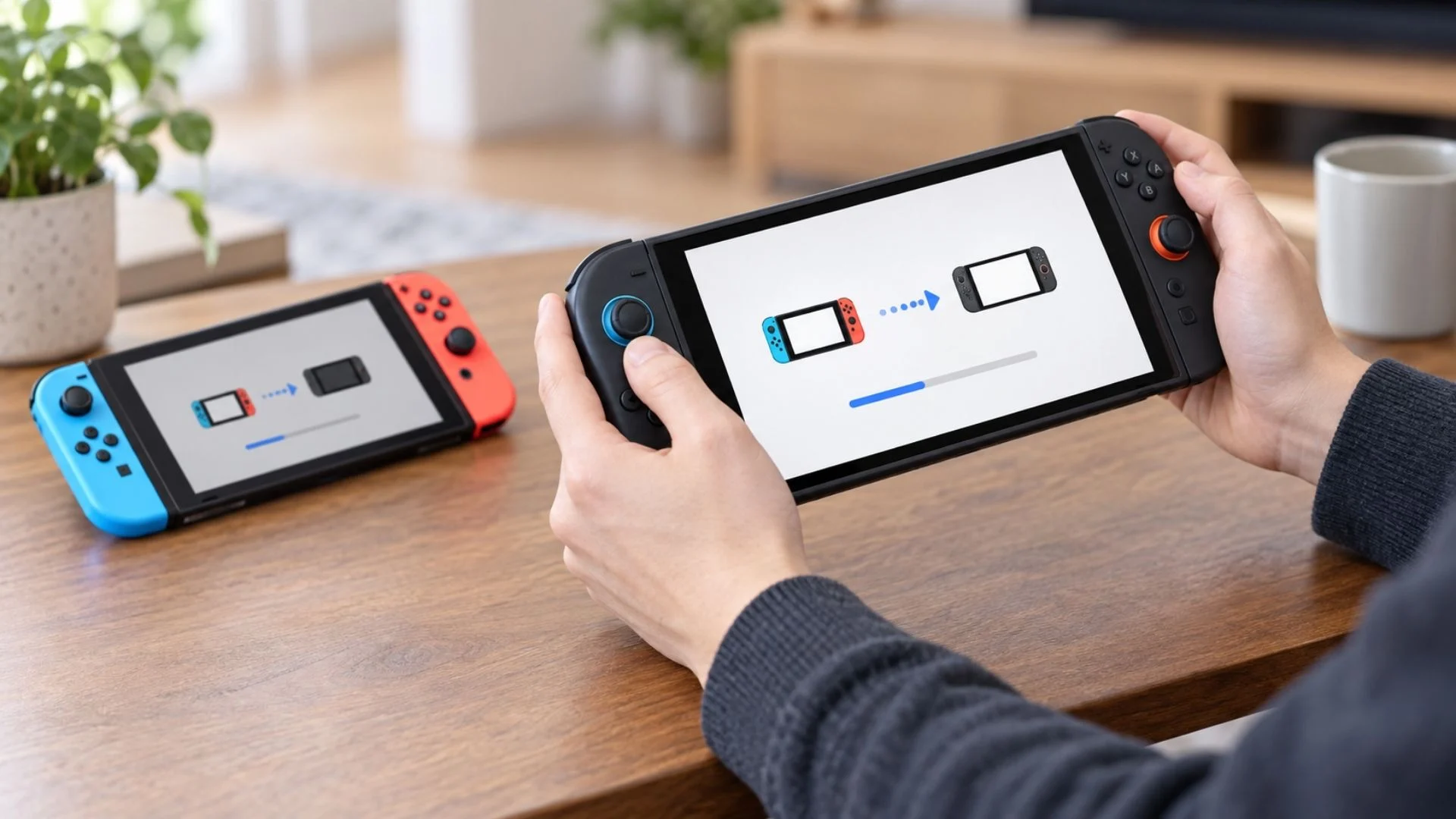
A Nintendo Switch 2 system transfer can move user profiles, linked Nintendo Accounts, save data, digital purchases, screenshots, videos, and many settings from a Nintendo Switch to Nintendo Switch 2. The safest route is a local transfer when you have both consoles. Nintendo also offers a server transfer for people who must sell or trade in the old console before the new one arrives, but that option factory-resets the source Nintendo Switch after the upload.
The details matter because not every save behaves the same way. During a local transfer, saves that support Save Data Cloud and belong to users linked to Nintendo Accounts are copied to Nintendo Switch 2 and remain on the old console. Saves for unlinked users and games that do not support Save Data Cloud move to Nintendo Switch 2 and are deleted from the old console. A server transfer erases everything from the old console once its data has been uploaded.
Nintendo Switch 2 System Transfer: Quick Answer
If you have both consoles, use local communication during the initial setup of Nintendo Switch 2. Keep both systems nearby, online, updated, plugged into power, and sign in on Nintendo Switch 2 with the same Nintendo Account linked to the source system. Nintendo’s current system-transfer instructions recommend this method for most owners.
If you will give up the old Nintendo Switch before receiving Nintendo Switch 2, you can upload its transfer package to Nintendo’s server. The upload has a displayed Download Deadline of up to one year. Completing the upload initializes the old console and deletes all of its local data, so verify every important save and capture first.
What You Need Before Transferring to Switch 2
- A Nintendo Switch, Nintendo Switch Lite, or Nintendo Switch – OLED Model with the latest system update.
- A Nintendo Switch 2 on its initial setup screens for a full system transfer.
- An internet connection for both local and server transfers. Local communication carries the console-to-console data, but Nintendo still uses the internet to verify the Nintendo Account.
- At least one user on the source Nintendo Switch linked to a Nintendo Account.
- The sign-in details for the same Nintendo Account on Nintendo Switch 2.
- Enough time for the consoles to finish without being powered off. Nintendo does not publish one universal transfer-time estimate because the amount of data and network conditions vary.
- A review of every user’s saves, especially games that do not support Save Data Cloud and users not linked to Nintendo Accounts.
Nintendo Switch Online is not required to run the system-transfer feature. A paid membership is required only if you plan to use Save Data Cloud backups or downloads for supported games.
Local Transfer vs Server Transfer
| Question | Local transfer | Server transfer |
|---|---|---|
| Are both consoles required? | Yes, at the same time and close together | No; upload from Nintendo Switch first, then retrieve later on Nintendo Switch 2 |
| Internet required? | Yes, on both consoles | Yes, for upload and retrieval |
| Best use case | You still have the old console when Nintendo Switch 2 arrives | You must trade in, sell, or give away the old console first |
| What happens to the old Switch? | It remains usable, but some saves are moved off it | It is initialized to factory settings after upload |
| Save deletion on old Switch | Non-cloud-compatible saves and saves belonging to unlinked users are deleted after moving | All local data is deleted when the console is initialized |
| Deadline | No server-storage deadline | Up to one year; use the exact Download Deadline shown by Nintendo |
| Main limitation | Requires both systems during Nintendo Switch 2 initial setup | Destructive to the old console and must be retrieved during Nintendo Switch 2 initial setup |
What Transfers to Nintendo Switch 2?
| Data | What happens |
|---|---|
| Users and Nintendo Accounts | All users, user settings, signed-in Nintendo Accounts, friends, play activity, and users you have played with transfer. |
| Save data | Supported saves transfer, but what remains on the source depends on Nintendo Account linkage and Save Data Cloud compatibility. |
| Digital purchases | Ownership stays with the purchasing Nintendo Account. Compatible software can be downloaded again after setup. |
| Software files | Digital software is downloaded to Nintendo Switch 2 after setup if automatic redownload is enabled; it is not simply copied as an installed library. |
| Screenshots and videos | Captures in system memory transfer if album transfer is enabled. Captures on the old microSD card can be imported separately. |
| Settings | Registered networks, Parental Controls, Mii data, HOME Menu icon order, software groups, and certain console statuses transfer. |
| Virtual Game Card status | The status that allows the console to use Virtual Game Cards transfers, although individual software may still need to be loaded or downloaded. |
Nintendo lets you turn off automatic software redownload and album transfer during the process. That can reduce the immediate download or transfer load, but it does not change who owns digital purchases or prevent you from downloading eligible content later.
What Does Not Transfer?
Nintendo’s current documentation lists Bluetooth audio device pairings and settings, custom controller button mappings, and the system’s time, time zone, region, and language as items that do not transfer. You configure those again on Nintendo Switch 2.
Compatibility is a separate issue. A transferred purchase does not guarantee that every original Nintendo Switch game works perfectly on Nintendo Switch 2. Nintendo says some games may be unsupported or only partially compatible, so check the game’s current compatibility information when a title is important to you.
What Gets Deleted From the Old Nintendo Switch?
| Situation | Result on the old Nintendo Switch |
|---|---|
| Local transfer: linked user + cloud-compatible game | The save is copied to Nintendo Switch 2 and remains on the old console. |
| Local transfer: game without Save Data Cloud support | The save moves to Nintendo Switch 2 and is deleted from the old console. |
| Local transfer: user not linked to a Nintendo Account | That user’s save data moves to Nintendo Switch 2 and is deleted from the old console. |
| Server transfer | The source console is initialized after upload, deleting all local users, saves, software data, and settings. |
| Individual save-data transfer used instead | The selected save is removed from the source after it moves to the target. |
Warning: Do not start either route until everyone who uses the old console understands the consequences. For a local transfer, pay particular attention to games without Save Data Cloud support and profiles not linked to Nintendo Accounts. For a server transfer, treat the upload confirmation as the point after which the old console will be wiped.
How to Transfer From Switch to Switch 2 Locally
- Update both consoles and connect each one to the internet.
- Turn on Nintendo Switch 2 and continue its initial setup until the System Transfer screen appears.
- Select Start System Transfer.
- Insert a microSD Express card if you plan to use one, or choose Skip.
- Select Sign In to a Nintendo Account and use the same account linked to the user that will initiate the transfer on the old Nintendo Switch.
- Keep both consoles close together and follow the prompt to prepare the source system.
- On the old Nintendo Switch, open System Settings > System > System Transfer to Nintendo Switch 2.
- Select Next and follow the confirmation prompts.
- Choose whether Nintendo Switch 2 should automatically redownload software and whether album data should transfer.
- Confirm that Nintendo Switch 2 is nearby, then let the consoles connect and complete the transfer.
- After Nintendo Switch 2 restarts, finish initial setup. Confirm the transfer on the old Nintendo Switch when prompted.
Do not interrupt either console during the process. If a local system transfer fails and must be attempted again, Nintendo may require Nintendo Switch 2 to be initialized before another full attempt.
How Nintendo’s Server Transfer Works
Use the server route only when you cannot keep the old console until Nintendo Switch 2 arrives. On the source Nintendo Switch, open System Settings > System > System Transfer to Nintendo Switch 2, continue through the notices, and choose the option indicating that you do not have the other system yet. Nintendo will show a specific Download Deadline before upload.
After you send the transfer data to Nintendo’s server, the source system is initialized to factory settings. When Nintendo Switch 2 arrives, sign in with the same Nintendo Account during initial setup and retrieve the package when prompted. Nintendo stores it for up to one year, but the date shown on your own transfer is the deadline that controls.
You can check a pending transfer at the Nintendo Account website under Game Systems > System Transfers. When the source was an original Nintendo Switch model, Nintendo also documents a cancellation-and-restoration route: during the source console’s startup sequence, you can reveal the recovery option, sign in with the initiating Nintendo Account, and download the package back to a compatible Nintendo Switch. Restoration brings back as much as possible, but Virtual Game Card registrations, software downloads, and the Parental Controls app link may need to be set up again.
Already Set Up Your Switch 2?
A full Nintendo Switch 2 system transfer is available only during the target console’s initial setup. If setup is already complete and you want the full local or server package, Nintendo says you must initialize Nintendo Switch 2 and go through setup again. Initialization deletes data on that target console, so back up or move anything important first.
If you do not want to reset Nintendo Switch 2, you can sign in to your Nintendo Account, redownload digital games, transfer compatible saves individually from the old console, and download current Save Data Cloud backups if you have Nintendo Switch Online. This piecemeal route does not reproduce every user, setting, capture, or special-case save handled by the full system transfer.
What Happens to Digital Games?
Digital purchases remain attached to the Nintendo Account that bought them; ownership does not move to a different account. During system transfer, Nintendo Switch 2 can automatically download compatible digital software after initial setup. If you disable automatic redownload, use the HOME Menu icon, Virtual Game Cards, or Nintendo eShop to download it later.
Virtual Game Cards control where eligible digital games and DLC are loaded for offline-style access. Nintendo also offers an Online License setting that can let the purchasing user start owned software while connected to the internet even when its Virtual Game Card is not loaded. These license tools affect access, while the large software files still have to be downloaded to internal storage or a microSD Express card.
What Happens to Save Data?
Save data is stored in console system memory, not on a microSD card. A full system transfer carries supported saves to Nintendo Switch 2, but local retention on the old console depends on two conditions: the user must be linked to a Nintendo Account, and the game must support Save Data Cloud. Nintendo provides a Save Data Cloud compatibility check through each game’s eShop or software information.
Save Data Cloud itself requires Nintendo Switch Online, and not every game supports it. Before transferring, highlight each important game, press the + or – Button, and inspect its Save Data Cloud entry. Do not assume a cloud-compatible game’s last backup is current; compare the timestamps when a backup matters.
Animal Crossing: New Horizons is a documented special case. Nintendo’s current game-specific instructions say a full Nintendo Switch-to-Nintendo Switch 2 system transfer carries the island data. After a local transfer, each resident must be linked to the correct user when the game first starts on Nintendo Switch 2. If Nintendo Switch 2 is already set up, use Nintendo’s Animal Crossing island-transfer procedure with both consoles instead.
What Happens to Screenshots and Videos?
Screenshots and videos in the old console’s system memory can transfer when Transfer Album Data is enabled. Captures stored on the old microSD card are not normal game-storage data for Nintendo Switch 2, but the new console can temporarily read that card to import captures into its system memory.
If you skip the import during setup, you can do it later through System Settings > Data Management > Manage Screenshots and Videos > Import from a Nintendo Switch microSD Card. Make sure Nintendo Switch 2 has enough free system memory before starting.
microSD vs microSD Express
Original Nintendo Switch systems use standard microSD, microSDHC, and microSDXC cards. Nintendo Switch 2 requires microSD Express for expandable game storage. An old non-Express card cannot be reused for downloaded games, updates, or normal capture storage on Nintendo Switch 2; its supported role is importing old screenshots and videos.
Save files are not stored on either card type. They remain in console system memory and move through Nintendo’s transfer or cloud-save tools. For capacity choices, compatibility, and storage rules, see our Nintendo Switch 2 microSD Express guide.
Before You Sell or Trade In Your Old Switch
- Open every important game and confirm the expected save exists.
- Check whether each game supports Save Data Cloud and whether its latest backup timestamp is current.
- Identify users that are not linked to Nintendo Accounts.
- Review special-case games, especially Animal Crossing: New Horizons.
- Copy irreplaceable screenshots and videos to a computer or other safe location.
- Confirm the purchasing Nintendo Account for every essential digital game and DLC item.
- If using server transfer, record the displayed Download Deadline and verify the upload finished before handing over the console.
- Do not promise the console to a buyer until the process reaches Nintendo’s factory-reset stage and no personal information remains.
Nintendo Switch to Switch 2 Transfer Checklist
- Both systems updated
- Stable internet connection
- Same Nintendo Account credentials ready
- All console users notified
- Non-cloud and unlinked-user saves identified
- Animal Crossing island plan checked
- Captures backed up or album transfer enabled
- microSD Express card ready if expanded storage is needed
- Server Download Deadline recorded, if applicable
- Important saves and digital purchases verified after transfer
Nintendo Switch 2 System Transfer FAQ
Does system transfer delete data from the old Switch?
Local transfer deletes saves that do not support Save Data Cloud and saves belonging to users without linked Nintendo Accounts from the old console after moving them. Cloud-compatible saves for linked users are copied and remain. Server transfer initializes the old console and deletes all local data.
Do digital games transfer?
The purchasing Nintendo Account keeps ownership. Compatible games are downloaded again on Nintendo Switch 2, automatically if that option is enabled or manually later.
Do I need Nintendo Switch Online?
No. System transfer requires a Nintendo Account and internet connection, but not a paid Nintendo Switch Online membership. Membership is required for Save Data Cloud.
Can I transfer without having my Switch 2 yet?
Yes, through Nintendo’s server-transfer option. It factory-resets the old console after upload and gives you a Download Deadline of up to one year.
Can I transfer after setting up Switch 2?
A full system transfer requires initial setup, so Nintendo Switch 2 must be initialized to run it later. Without a reset, use account sign-in, redownloads, individual save transfer, cloud backups, and game-specific tools instead.
Can I continue using the old Switch?
Yes after a local transfer, but non-cloud-compatible and unlinked-user saves that moved will no longer be there. Digital-game access may also require managing Virtual Game Cards or Online License settings.
Do screenshots and videos transfer?
System-memory captures can transfer when album transfer is enabled. Captures on an old microSD card can be imported separately into Nintendo Switch 2 system memory.
Does the old microSD card work in Switch 2?
Not as ordinary storage unless it is a microSD Express card. A standard old card can be inserted temporarily only to import Nintendo Switch screenshots and videos.
What happens to games without cloud saves?
Their saves can move through the full system transfer, but after a local transfer those saves are deleted from the old Nintendo Switch. Verify each special case before selling or reusing the source console.
How long does Nintendo keep server-transfer data?
Up to one year. Nintendo displays the exact Download Deadline during the upload and in Nintendo Account settings; retrieve or cancel the transfer before that date.
Which transfer route fits your setup best: a local transfer with both consoles, or a server upload before trading in the old one?
Comments
No comments yet. Be the first to share your thoughts.