
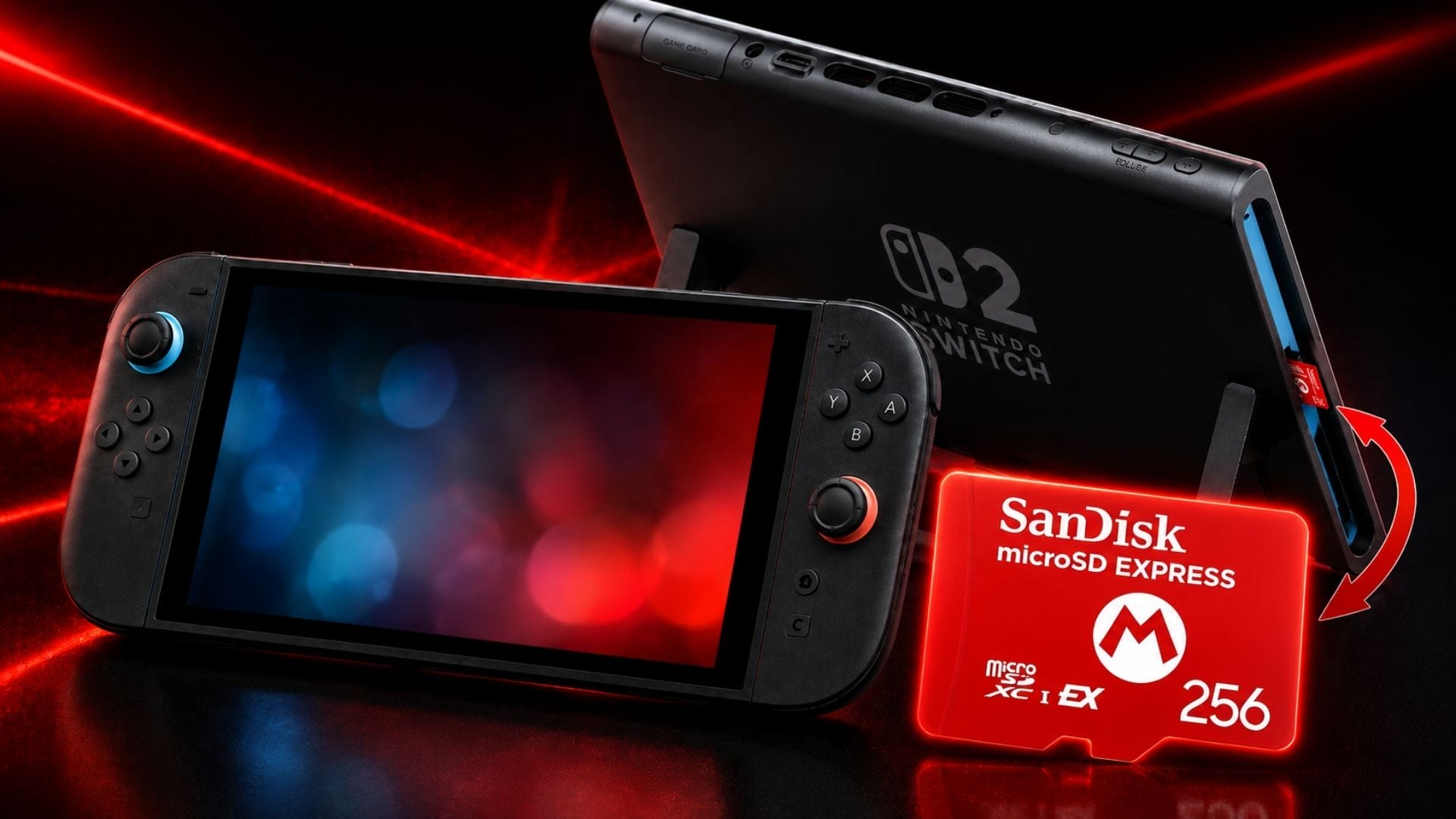

Nintendo Switch 2 includes 256 GB of internal UFS storage, although Nintendo says part of that space is reserved for the system. If you need more room for downloaded games, DLC, or updates, the console requires a microSD Express card and supports capacities up to 2 TB. A regular microSD card from an original Nintendo Switch cannot be used as normal Nintendo Switch 2 game storage.
That distinction matters when you shop: a card that merely says microSD, microSDHC, or microSDXC is not enough. Look for the microSD Express logo. Nintendo also requires an internet-connected system update the first time a microSD Express card is used.
Nintendo Switch 2 storage at a glance
| Storage question | Answer |
|---|---|
| Internal storage | 256 GB UFS; Nintendo does not publish a precise user-available figure and notes that some space is system-reserved |
| Expansion format | microSD Express |
| Maximum card capacity | Up to 2 TB |
| Downloaded games, DLC, and updates | Can be stored on a microSD Express card |
| Screenshots and captured videos | Can be stored on or moved between system memory and a microSD Express card |
| Game save data | Stored in system memory; it cannot be saved or copied to a microSD Express card |
| Old, non-Express Switch microSD card | Cannot store Nintendo Switch 2 games; it can only be used to import screenshots and videos captured on Nintendo Switch |
These limits come directly from Nintendo’s current Nintendo Switch 2 technical specifications and microSD Express support FAQ.
What is microSD Express?
microSD Express is a faster storage standard in the familiar microSD-sized card. The SD Association’s technical overview explains that the format adds PCIe and NVMe interfaces while retaining a legacy SD interface. For a Nintendo Switch 2 owner, the practical point is simpler: the console uses the Express interface to run downloadable software from expandable storage.
An ordinary microSD, microSDHC, or microSDXC card may fit physically, but that does not make it suitable for Nintendo Switch 2 games. Nintendo says only microSD Express cards can serve as expandable game storage.
Can you use a regular microSD card in Nintendo Switch 2?
No, not for Nintendo Switch 2 games or normal storage. A non-Express microSD card cannot save or load downloadable games on Nintendo Switch 2. It also cannot hold Nintendo Switch 2 screenshots, videos, or save data.
There is one narrow exception for owners moving from the original console. Nintendo Switch 2 can read an old Nintendo Switch microSD card to import screenshots and videos into system memory. This is a transfer function, not general card compatibility. Nintendo’s capture-management instructions place the option under System Settings > Data Management > Manage Screenshots and Videos > Import from a Nintendo Switch microSD Card.
Can you reuse your original Nintendo Switch microSD card?
You cannot reuse a standard Nintendo Switch microSD card as Nintendo Switch 2 game storage. Moving the old card into the new console does not transfer installed digital games, and save files are not carried over on the card. Save data is stored in each console’s system memory and must be transferred through Nintendo’s supported console-transfer or save-data features.
You can temporarily insert the old card to import screenshots and videos as described above. After the import, you still need a separate microSD Express card if you want expandable storage for Nintendo Switch 2 software.
If the card you used with your original Nintendo Switch is itself a microSD Express model, Nintendo says it can work in both systems. On an original Nintendo Switch, however, it operates at the same read/write speed as a regular microSD card rather than gaining Express performance.
What size microSD Express card should you buy?
The right capacity depends on how much software you download and how often you are willing to archive or redownload games. Nintendo supports microSD Express cards up to 2 TB, but the largest option is not automatically the best value for every player.
| Capacity | Best fit | Practical tradeoff |
|---|---|---|
| 256 GB | Mostly physical games, a smaller digital library, or players comfortable managing storage | Lower capacity means more frequent archiving as the library grows |
| 512 GB | A mixed physical and digital library with room for several larger downloads | A balanced middle tier, but digital-heavy owners may eventually outgrow it |
| 1 TB | Frequent digital purchases, larger installations, and longer-term library growth | More headroom and less routine management, usually at a higher cost |
| 2 TB | A very large digital library or owners who prioritize maximum supported capacity | Most expensive tier and unnecessary for many physical-first players |
These are usage-based recommendations, not estimates of how many games each card will hold. Installation sizes vary widely by title, and updates or DLC can increase them over time. Check the required storage on the Nintendo eShop listing or packaging before buying a game, especially when planning several large downloads.
Is 256 GB enough for Nintendo Switch 2?
The console’s built-in 256 GB can be enough for a physical-first library, but it may feel limited for frequent digital purchases. Nintendo does not state exactly how much of the internal drive is available after system-reserved storage, so calculations that treat all 256 GB as usable are misleading.
A separate 256 GB microSD Express card is a reasonable entry point for lighter digital use. It expands the available pool without committing to a higher-capacity card, but owners who expect to keep many large downloads installed may save time by starting at 512 GB or 1 TB.
512 GB vs. 1 TB vs. 2 TB
Choose 512 GB for a mixed library, 1 TB for digital-heavy use, and 2 TB only when maximum long-term headroom matters more than cost. The deciding factor is convenience: a larger card reduces how often you need to archive software or move it back to internal storage.
Game-Key Cards also push storage needs upward because they require the game data to be downloaded. If you buy many of them, plan as if those games were digital installations even though a physical card remains necessary to launch each title.
What can be stored on microSD Express?
A compatible card can store:
- downloadable games and software;
- DLC and other add-on content;
- software update data, although Nintendo notes that some update data cannot be moved;
- screenshots and captured gameplay videos; and
- downloaded game data required by Game-Key Cards.
When a microSD Express card is inserted, Nintendo says it becomes the default save location for downloadable software. This does not move save files: game progress remains in internal system memory.
Where is Nintendo Switch 2 save data stored?
Game save data is stored in Nintendo Switch 2 system memory. Nintendo does not allow it to be saved or copied to a microSD Express card. That rule also applies to games launched with Game-Key Cards.
This separation is important when troubleshooting or replacing a card. Formatting a microSD Express card erases the software and captures on it, but it does not erase save data stored on the console. Cloud backups and console-to-console save transfers are separate Nintendo features and are not substitutes for copying a storage card.
How to move games between system memory and microSD Express
Nintendo provides a built-in transfer menu for downloadable software, DLC, and supported update data:
- Open System Settings from the HOME Menu.
- Select Data Management.
- Select Move System / microSD Express Card Data.
- Choose the data to move, then confirm with OK.
Nintendo’s official software-moving guide warns that save data and some update data cannot be migrated. The menu also does not let you permanently force every part of a game to one location; later update data may be saved elsewhere as you continue playing.
Can you use more than one microSD Express card?
Nintendo recommends one microSD Express card per Nintendo Switch 2 console. Although multiple cards may seem like separate game libraries, downloadable software spread across them cannot later be combined into one card through the console.
If you need more room, Nintendo recommends transferring the entire card to a larger microSD Express card. Its card-to-card transfer instructions also say not to swap data among multiple cards or move a card between consoles. Software downloaded to a card on one console will not play from that card on a different system.
How Game-Key Cards affect storage
A Game-Key Card does not contain the game data itself. It contains the key needed to launch the game, while the software must be downloaded over the internet to internal storage or a microSD Express card. The card must remain inserted whenever you play.
The required download size appears on the Game-Key Card packaging. Nintendo’s Nintendo Switch 2 FAQ also confirms that you can check free space under System Settings > Data Management. Save data for these games remains in system memory.
How to identify a compatible card
Look for the microSD Express name and the microSD Express logo on the card and packaging. Do not assume that a high capacity, familiar brand, or an ordinary microSDXC label makes a card compatible.
Nintendo-branded or officially licensed cards are optional, not mandatory. Nintendo states that any card up to 2 TB that meets the microSD Express standard can be used. Licensed packaging may make identification easier, but technical compatibility comes from meeting the Express standard.
What to do if a microSD Express card is not recognized
Start with Nintendo’s least destructive checks:
- Power the console off completely before removing the card.
- Confirm the card is genuinely microSD Express and no larger than 2 TB.
- Check that the card is clean and insert it under the adjustable stand with its label facing away from the console until it clicks.
- Connect to the internet and install the required system update if this is the first time the console has used a microSD Express card.
If the card still is not detected, Nintendo’s not-recognized troubleshooting page recommends checking for debris and then formatting the card. Formatting permanently deletes the card’s contents, so back up screenshots and videos first; downloadable software can be redownloaded with the purchasing Nintendo Account. If the card remains unreadable, Nintendo advises trying a replacement card or arranging console service when multiple compatible cards fail.
Nintendo Switch 2 storage FAQ
Does Nintendo Switch 2 support 2 TB microSD Express cards?
Yes. Nintendo officially supports microSD Express cards with capacities up to 2 TB.
Can Nintendo Switch 2 save data go on a microSD Express card?
No. Save data stays in internal system memory and cannot be saved or copied to the expansion card.
Do physical Nintendo Switch 2 games use storage?
Regular game cards contain game data, but updates, DLC, captures, and save files can still use console storage. Game-Key Cards are different: they require the game software to be downloaded to internal storage or microSD Express.
Does microSD Express work in the original Nintendo Switch?
Yes, but Nintendo says it operates at ordinary microSD read/write speed in an original Nintendo Switch. Express-speed operation is not available there.
Do you have to buy a Nintendo-licensed microSD Express card?
No. Any card up to 2 TB that meets the microSD Express standard is supported, although licensed cards can make compatibility easier to identify.
How do you check free storage on Nintendo Switch 2?
Open System Settings from the HOME Menu, then select Data Management to see available space in system memory and on the inserted microSD Express card.
Comments
No comments yet. Be the first to share your thoughts.