
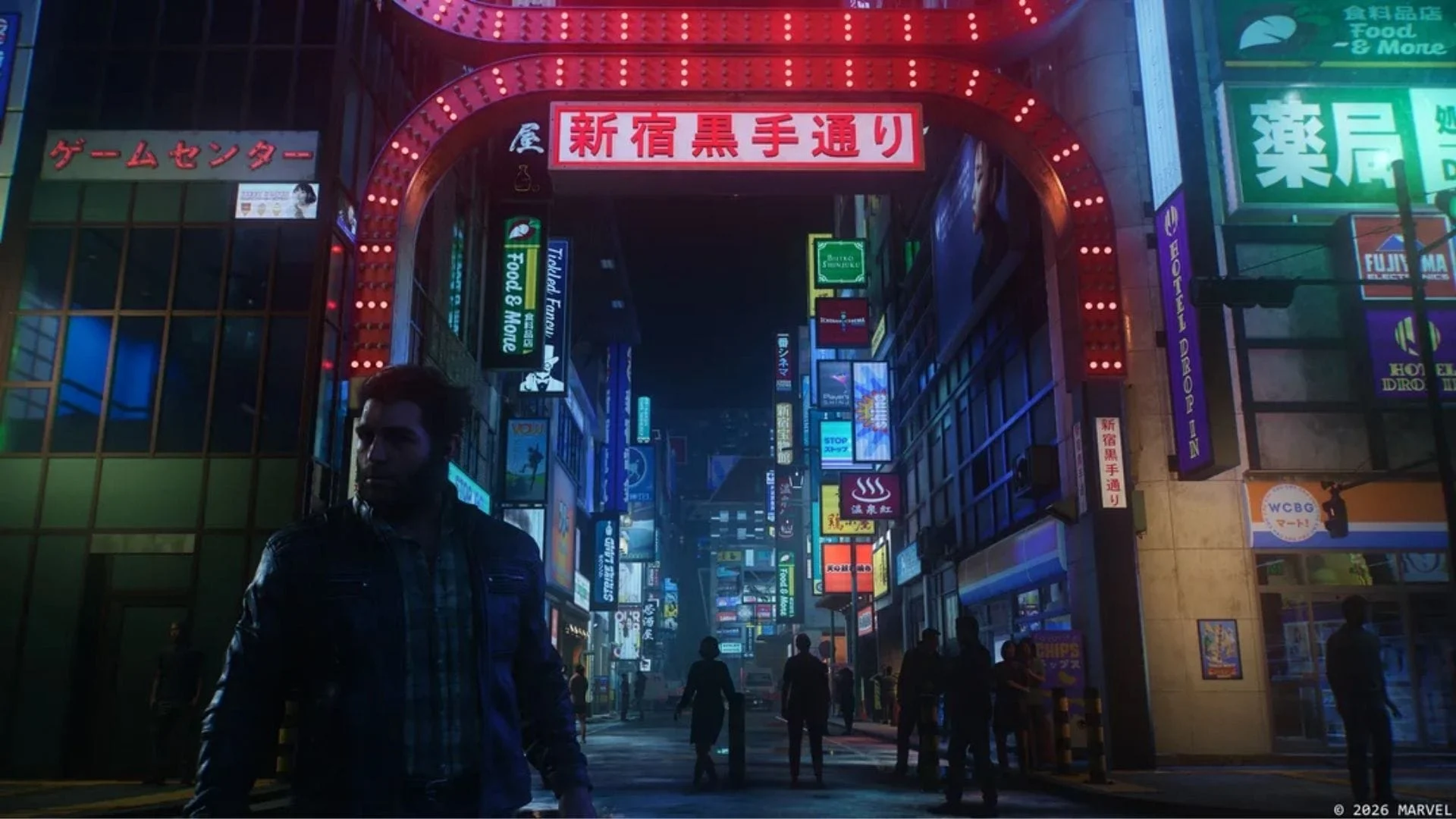

Marvel’s Wolverine players can build more elaborate screenshots with five independent lights, movable character poses, a miniature Action Figure mode, camera tilt options, and customizable shortcuts. PlayStation has published an official guide explaining how to use those tools for portraits, action scenes, and more experimental compositions.
The PlayStation Blog guide contains images of unlockable outfits and mid-game content, so players avoiding spoilers should proceed carefully.
How to set up Marvel’s Wolverine Photo Mode
Photo Mode is available through the pause menu by default. Players can also assign it to a DualSense D-pad button in Settings. A second shortcut can control game speed, reducing it by 30%, 50%, or 70% to make fast combat moments easier to frame.
After completing the story, the bed in Logan’s cabin opens Chapter Select. That makes it possible to revisit locations and scenes across Canada, Shinjuku, Madripoor, and other parts of the game without replaying the full campaign. The interface can also be moved between the left and right sides of the screen when it blocks the composition.
The Tilt control supports traditional landscape framing, Dutch angles, and a 9:16 portrait orientation. PlayStation notes that PlayStation Portal users can turn the handheld on its side when composing a vertical image.
Using the five-light system
Marvel’s Wolverine provides up to five independent lights, each with separate color, intensity, distance, and positioning controls. Lights can be set as spheres for a wider glow or spotlights for a more directional beam.
The guide recommends starting with one or two lights. A key light can illuminate Logan or another subject from the front, while a lower-intensity rim light placed behind the character can separate the model from the background. More lights can then imitate environmental sources such as arcade cabinets, casino machines, lanterns, or candles.
One important limitation concerns positioning: the five lights rotate around Logan’s original location when Photo Mode was opened, not wherever the player moves him afterward. Lights may therefore need to be repositioned after adjusting the character.
Move, pose, or hide Logan
The Character Pose menu lets players cycle through locked poses, facial expressions, unlocked suits, and claw options. Logan can be moved vertically and horizontally within a set radius, rotated, or hidden entirely. Enemy characters can also be hidden through menu toggles.
Because different suit materials react differently to light, the official guide suggests checking several unlocked outfits before leaving a finished setup. Players can also move Logan through other character models or environmental objects. The overlap may clip, but a carefully chosen angle can conceal it—or use it deliberately for a stylized effect.
Action Figure mode, carried over from Marvel’s Spider-Man 2, shrinks Logan while preserving the normal movement range. The miniature model can be placed into a character’s hand or combined with a flat-color background for comic cover-style images. Logan also has a separate set of poses while airborne.
The final advice is simple: after capturing the intended shot, pan the camera around before exiting. A different angle, background detail, or foreground element may produce a stronger image from the same frozen moment.
The guide follows other visual updates for the game, including PS5’s QSSR support for Marvel’s Wolverine, which we previously covered.
Which Marvel’s Wolverine Photo Mode feature will you experiment with first?
Comments
No comments yet. Be the first to share your thoughts.