
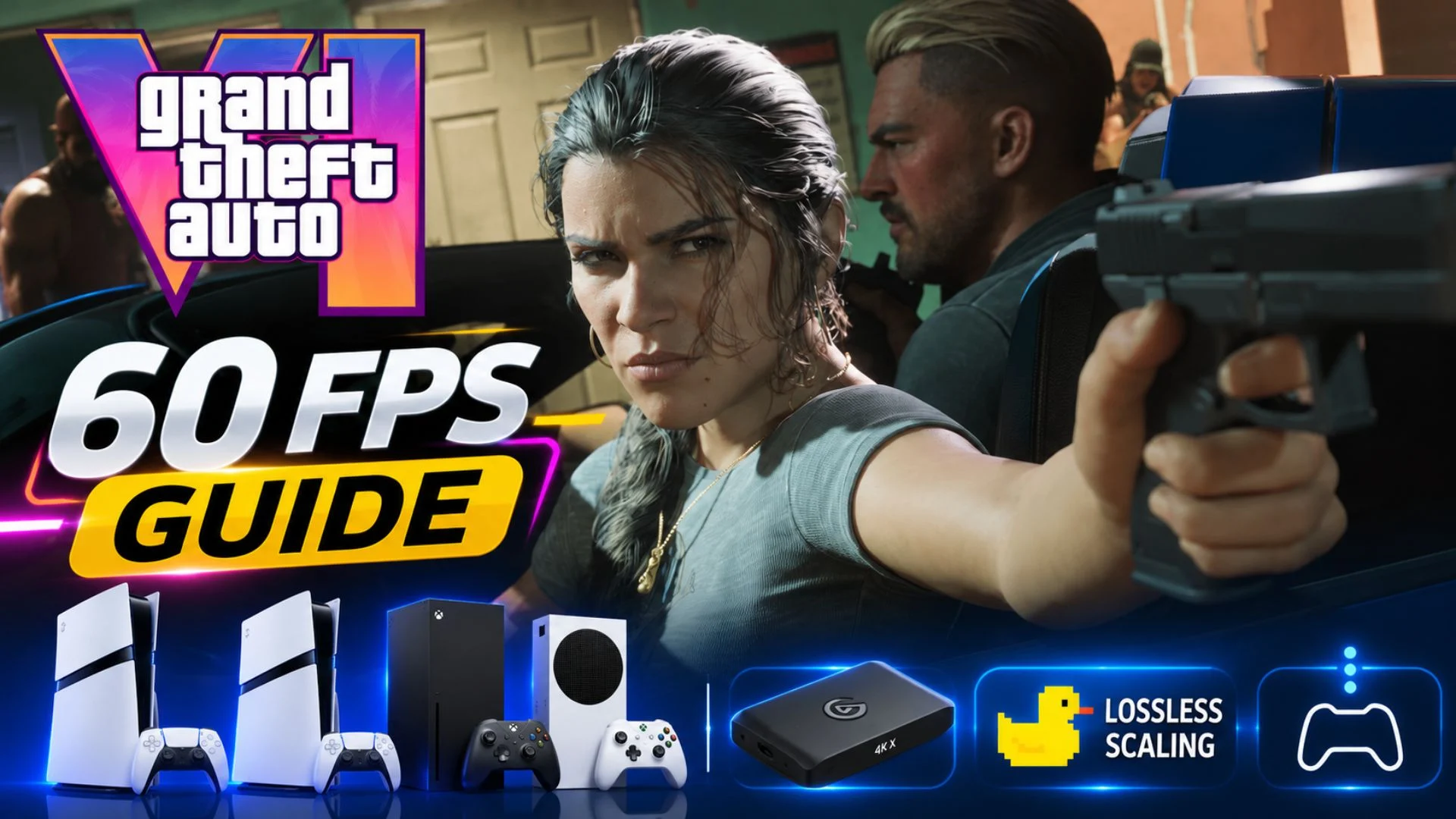

GTA 6 does not have a native 60 FPS mode on PS5, PS5 Pro, Xbox Series X, or Xbox Series S. The practical ways to make it look smoother all involve compromises: generating extra frames on a PC, using a television’s motion interpolation, or experimenting with an unreliable Xbox Quick Resume bug.
This guide explains how to play GTA 6 with a 60 FPS-style presentation, what each setup requires, and which methods are actually usable as of November 24, 2026. For the official frame-rate target and console-by-console performance, see our GTA 6 60 FPS technical FAQ.
The key distinction: a native 60 FPS game renders 60 new game frames every second and can respond to input at that rate. Frame generation or TV interpolation starts with GTA 6’s 30 FPS output and creates in-between images. Motion can look smoother, but controls do not become native-60-FPS responsive, and extra processing can add latency and artifacts.
GTA 6 60 FPS methods compared
| Method | Compatible consoles | What you need | Expected result | Native 60 FPS? | Current status |
|---|---|---|---|---|---|
| Xbox Quick Resume frame-rate unlock glitch | Xbox Series X; Series S has user reports but less independent evidence | 120 Hz display, Quick Resume, another installed game | Uncapped but highly variable output; independent testing averaged about 36 FPS on Series X | No reliable 60 FPS; the game itself is uncapped | Confirmed on 01.002.001; reported after the November 23 update but not independently revalidated |
| Capture card + Lossless Scaling | PS5, PS5 Pro, Xbox Series X|S | Windows PC, compatible GPU, capture card, OBS Studio, Lossless Scaling | 30 FPS capture displayed at a generated 60 FPS | No — interpolated frames | Available |
| Remote Play + frame generation | PS5, PS5 Pro, Xbox Series X|S | Windows PC with dedicated GPU, wired or strong home network, official Remote Play app, compatible frame-generation software | 30 FPS stream displayed at 60 FPS or higher, depending on software and GPU | No — interpolated frames | Available, but results vary by network and software |
| TV motion interpolation | PS5, PS5 Pro, Xbox Series X|S | Compatible TV with motion smoothing | Smoother-looking camera motion from the 30 FPS HDMI signal | No — TV-generated frames | Available on supported TV models |
Method 1: Xbox Series X FPS unlock glitch
The Xbox method is an unofficial Quick Resume bug, not a Rockstar performance mode. The original player report documented it on GTA 6 version 01.002.001 with an Xbox Series X and a 120 Hz display. Other players reported Series S results, but the strongest independent measurements are for Series X.
Digital Foundry subsequently tested the unlock and found a very different result from the early “60 FPS” claims. Its capture data showed GTA 6 mostly running between 30 and 40 FPS on Series X, averaging about 36 FPS during the first hour. Frame-rate swings made movement feel inconsistent, and some animations or gameplay sequences ran at abnormal speed.
Patch compatibility: Rockstar’s November 23 update notes list crash, autosave, weather, mission-call, Wanted Level, gym, and partner handoff fixes. They do not mention the Quick Resume bug. Players have reported that the sequence can still trigger on the current update, but there is no post-patch independent measurement confirming reliable behavior. Treat it as unverified on the current build, not as a recommended way to play.
Requirements
- Xbox Series X; Series S compatibility is based on user reports rather than equivalent independent testing
- A display that accepts 120 Hz
- GTA 6 and a second installed game that supports Quick Resume
- Enough Quick Resume storage for both games
Reported setup steps
- Open Xbox Settings > General > TV & display options and set the refresh rate to 60 Hz.
- Start GTA 6 and wait for the six-star opening logo.
- Return to Xbox display settings without quitting GTA 6 and change the output to 120 Hz.
- Open the Xbox Guide and cold-start a different game. Do not manually quit GTA 6.
- Use Quick Resume to switch back to GTA 6.
- If the game behaves incorrectly, fully quit it and relaunch at the normal display setting. Do not continue a save session if missions, physics, animation speed, audio, or controls appear broken.
What to expect
This can remove the 30 FPS cap, but it does not turn GTA 6 into a stable 60 FPS game. Independent testing found the biggest improvement in lighter scenes near 40 FPS, with performance falling toward or below 30 in heavier areas. Input latency can decrease while the game is actually running above 30 FPS, but the fluctuating rate and speed problems can make control less predictable.
Known problems include double-speed or otherwise accelerated animations, inconsistent world speed, unstable frame pacing, possible 15 FPS behavior when the sequence misfires, and the risk that a future GTA 6 or Xbox system update removes the bug. There is no equivalent verified method for PS5 or PS5 Pro.
Method 2: Elgato capture card and Lossless Scaling
A capture-card setup is the most direct way to apply PC frame generation to the console’s HDMI output. Elgato’s official GTA 6 guide documents a workflow using OBS Studio and Lossless Scaling. It works with PS5, PS5 Pro, Xbox Series X, and Xbox Series S because the PC processes the captured video rather than changing the console game.
Requirements
- A Windows 10 or Windows 11 PC with a compatible dedicated GPU
- A capture card capable of handling the console output you want to use; Elgato lists 4K X, 4K S, and 4K Pro among its current options
- An HDMI cable and a suitable USB connection or PCIe slot for the capture device
- OBS Studio
- Lossless Scaling from Steam
- A 60 Hz or faster PC display
Setup steps
- On PS5 or PS5 Pro, open Settings > System > HDMI and turn off Enable HDCP. Leave HDCP enabled again when you need protected video apps. Xbox does not require this PS5-specific step.
- Connect the console’s HDMI output to the capture card’s HDMI input, then connect the card to the Windows PC.
- Open OBS Studio. Under Sources, select +, choose Video Capture Device, and select the capture card.
- Open Settings > Video in OBS and set Common FPS Values to 30. This gives the frame generator the actual GTA 6 cadence instead of a 60 FPS container filled with duplicate frames.
- Right-click the OBS preview and open a fullscreen projector on the monitor where you want to play.
- Open Lossless Scaling. Leave image scaling off, select LSFG for frame generation, choose Fixed mode, and set the multiplier to 2.
- Select Scale, then switch to the OBS projector window before the countdown finishes.
- Confirm that motion is smoother and that audio, aspect ratio, HDR behavior, and controller response remain acceptable before starting a long session.
Results, latency, and artifacts
The PC displays one generated frame between each pair of captured game frames, producing a 60 FPS output from a 30 FPS source. GTA 6 still renders and simulates at 30 FPS on the console.
Latency comes from HDMI capture, the OBS preview path, frame generation, and the display. The total varies by capture card, USB controller, GPU, resolution, and display settings, so there is no universal figure. Expect more delay than direct console-to-TV Game Mode. Fast camera turns can also create ghosting, warped edges, or shimmer around the minimap, subtitles, weapons, characters, and thin geometry. A stable 30 FPS input generally looks better than a fluctuating one.
Elgato also lists NitLink and Veyra as alternatives that can open a capture device directly, but their compatibility and GPU requirements differ. This guide uses the more broadly documented OBS and Lossless Scaling path.
Method 3: Remote Play with frame-generation software
Remote Play removes the capture-card cost by streaming GTA 6 from the console to a Windows PC. Frame-generation software then processes the stream window. This is available on every GTA 6 console, but it adds network encoding and decoding before frame generation begins.
Requirements
- PS5, PS5 Pro, Xbox Series X, or Xbox Series S with GTA 6
- A Windows 10 or Windows 11 PC with a dedicated NVIDIA, AMD, or Intel GPU
- PS Remote Play for PlayStation or Xbox Remote Play for Xbox
- A wired Ethernet connection where possible; Sony recommends at least 15 Mbps in both directions for best PS Remote Play performance
- Frame-generation software that can capture the Remote Play window
Console and PC setup
- PS5 or PS5 Pro: go to Settings > System > Remote Play and enable Remote Play. For wake-from-rest support, enable Stay Connected to the Internet and Enable Turning on PS5 from Network under Settings > System > Power Saving > Features Available in Rest Mode.
- Xbox Series X|S: open Settings > Devices & connections > Remote features, enable remote features, run the remote-play test, and use the Sleep power option if you want the PC to wake the console.
- Install the official PlayStation or Xbox Remote Play app on the Windows PC, sign in with the same console account, and connect to the console.
- Use Ethernet for the console and PC when possible. If Wi-Fi is unavoidable, use a strong 5 GHz or 6 GHz connection with minimal congestion.
- Keep the stream visible in a normal or maximized window. Do not minimize it; some capture tools cannot read a minimized or exclusive-fullscreen window.
- Open compatible frame-generation software, select the Remote Play window, set the source cadence to 30 FPS when the software offers that option, and choose a 2x or 60 FPS target.
- Start with upscaling disabled. Add sharpening or scaling only after 60 FPS generation is stable.
One currently available specialized option is UpscaleGTA, a paid, independent Windows app built for the PS Remote Play and Xbox app windows. Its setup is to open the stream, let the app detect that window, choose 60 FPS, and press Start. The developer says AMD Radeon and Intel Arc configurations target 60 FPS, while supported NVIDIA RTX setups can target higher rates. These are vendor claims, not Game News Plus test results, and the product is not affiliated with Rockstar, Sony, or Microsoft.
Generic Lossless Scaling can also capture a Remote Play window, but a 30 FPS game may arrive inside a 60 FPS stream containing repeated frames. If the tool does not identify and remove those duplicates correctly, frame generation can stutter rather than smooth the image. A capture path designed for streamed video is therefore preferable.
Results, latency, and limitations
This method produces interpolated output, not native 60 FPS. It cannot repair frame-rate drops on the console; if GTA 6 falls below 30 FPS, the generated result has fewer clean source frames to work with.
Input delay includes the console’s normal response, Remote Play encoding, network transport, PC decoding, frame generation, and the monitor. UpscaleGTA reports roughly 25 milliseconds inside its own frame-generation stage at 60 FPS on an RTX 4080 test PC, but that figure does not include the rest of the chain and will vary. Compression artifacts can also confuse interpolation, producing smearing around foliage, wires, HUD elements, particles, and fast-moving vehicles.
Method 4: TV motion interpolation
Many televisions can create in-between frames from the console’s HDMI signal. Common names include Samsung Game Motion Plus, LG TruMotion, and Sony Motionflow. Other manufacturers use labels such as Motion Clarity, Action Smoothing, or Intelligent Frame Creation.
Setup steps
- Connect the console directly to a TV HDMI port that supports the resolution and refresh rate you plan to use.
- Start GTA 6, then open the TV’s picture or motion settings.
- Find the motion-interpolation option and begin at its lowest custom smoothing level. Avoid maximum settings, which usually create the most visible artifacts.
- On supported Samsung models, keep Game Mode on and enable Game Motion Plus. Samsung notes that VRR/FreeSync and Game Motion Plus are mutually exclusive on applicable models, so VRR may need to be disabled.
- On many LG models, TruMotion is unavailable in Game Optimizer or Game Mode. If so, switch to a non-game picture preset to expose TruMotion, understanding that this can substantially increase input lag.
- On Sony TVs, Motionflow availability depends on model and picture mode. Sony recommends disabling Motionflow and using Game mode when minimum input lag is the priority.
- Test camera pans, driving, aiming, subtitles, and the minimap. If controls feel heavy or halos and tearing appear around moving objects, reduce smoothing or turn it off.
Results, latency, and limitations
The TV can make 30 FPS motion resemble 60 Hz or higher, but GTA 6 still renders at 30 FPS and accepts game-state updates at that rate. Interpolation commonly adds input delay and may create halos, duplicated edges, judder during camera cuts, or distortion around the HUD.
Samsung’s Game Motion Plus is the most gaming-focused version among the examples above because it can operate in Game Mode on supported sets, but Samsung still states that minimum input lag comes with the feature off. Model-year differences are substantial, so check the manual for the exact TV rather than assuming a brand-wide setting is available.
Which method should you use?
For the lowest latency and the fewest visual errors, use GTA 6’s official 30 FPS presentation with the TV in Game Mode. If smoother camera motion matters more than response time, a capture card and properly configured PC frame generation offers the cleanest controllable 60 FPS output, while Remote Play is cheaper but adds network delay and compression.
TV interpolation is the simplest option if the television supports it, though it can feel noticeably heavier. The Xbox Quick Resume unlock is the least dependable choice: it is unstable, not a consistent 60 FPS solution, and its current-patch behavior is not independently verified.
Frequently asked questions
Can GTA 6 run at native 60 FPS on PS5 or Xbox?
No. Rockstar’s console versions target 30 FPS and do not include a native 60 FPS, 40 FPS, performance, or quality toggle.
Does a capture card make GTA 6 run at 60 FPS?
No. The capture card sends the console’s video to a PC. Software such as Lossless Scaling creates extra images between the real 30 FPS frames, so the display updates at 60 FPS while the game remains 30 FPS.
Does the Xbox GTA 6 60 FPS glitch work on the latest patch?
The unlock was confirmed on version 01.002.001. Players reported that it could still trigger after the November 23 update, but current-build behavior has not been independently re-measured. It should be treated as experimental and unverified, not a working 60 FPS mode.
Can PS5 Pro use any of these methods?
PS5 Pro can use capture-card frame generation, Remote Play frame generation, and compatible TV motion interpolation. It does not have the Xbox Quick Resume bug and still renders GTA 6 at 30 FPS.
Does 120 Hz or VRR alone make GTA 6 run at 60 FPS?
No. A 120 Hz output and VRR can change how frames are presented, but they do not make the console render twice as many GTA 6 frames. Some TV interpolation modes also require VRR to be disabled.
Which option adds the least input lag?
The official 30 FPS console output in a low-latency TV or monitor Game Mode remains the safest choice. Every interpolation method adds processing, while Remote Play adds network encoding and decoding as well.
Disclaimer: These unofficial methods may cause instability, visual artifacts, or increased input latency. Compatibility may change with future updates. Game News Plus has not independently tested these methods. Proceed at your own risk.
Which tradeoff would you accept for smoother-looking GTA 6 gameplay?
Comments
No comments yet. Be the first to share your thoughts.