
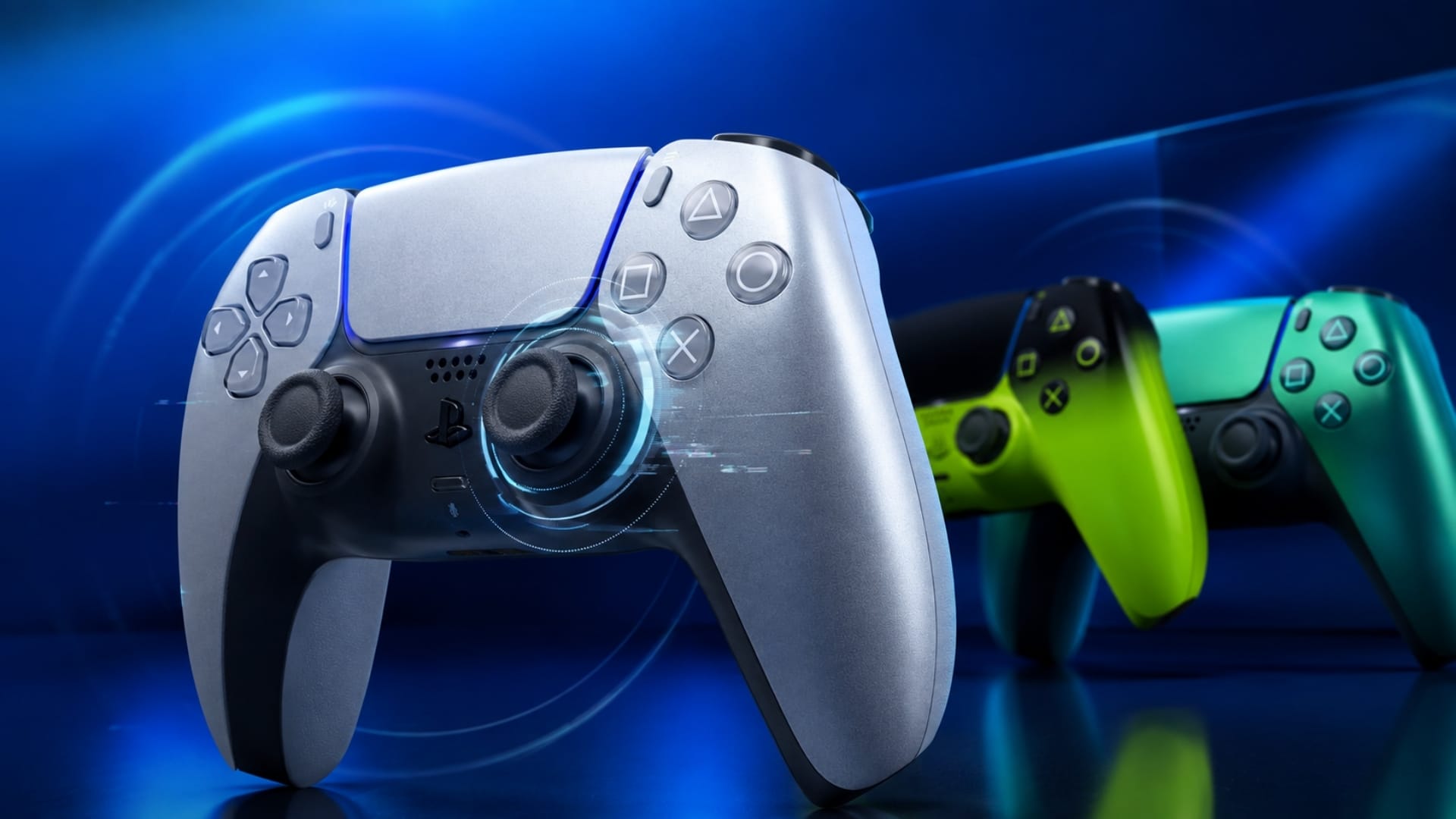

PS5 controller stick drift happens when a DualSense controller registers movement even though you are not touching an analog stick. A character may walk on their own, a camera may slowly turn, or a menu may keep moving. The cause can be as simple as a game setting or connection problem, but persistent drift can also point to dirt or wear inside the stick mechanism.
This guide starts with the safest checks and works toward repair. Test the controller after each step so you know what changed, and avoid opening it or applying liquid cleaners—especially if it may still be covered by warranty.
Quick Answer
To troubleshoot PS5 controller stick drift, first check whether it happens in more than one game. Restart the PS5, clean around the affected stick with a soft dry cloth and clean brush, reset the DualSense using the rear pinhole button for at least five seconds, and update both the PS5 system software and controller device software. Then test the controller over a true USB connection. If the same unwanted movement continues across several games while wired and wireless, the controller likely needs professional repair or replacement.
What Is PS5 Controller Stick Drift?
Stick drift is unintended analog-stick input. The stick appears to return to its center position, but the controller continues sending a direction to the console.
Typical symptoms include:
- A character walking or aiming without input.
- The camera slowly rotating while the controller is untouched.
- A cursor or menu selection moving by itself.
- Movement that stops temporarily when you nudge the affected stick.
Drift is different from a completely unresponsive stick. It can also be confused with input lag, an unstable wireless connection, motion-control input, or unusually sensitive settings in one game. Isolating the symptom is therefore more useful than assuming the stick hardware has failed immediately.
Common Causes of DualSense Stick Drift
- Game-specific deadzone settings: A small deadzone can expose minor off-center input that another game ignores.
- Temporary software or controller-state problems: Restarting, resetting, or updating the controller can clear some abnormal behavior.
- Dirt around the stick: Dust or residue around the outside of the stick may interfere with smooth movement.
- Internal wear or damage: Repeated use, impacts, or a spill can affect the stick mechanism and may require repair.
- Wireless connection problems: Delayed, intermittent, or skipped input can resemble drift even when the analog stick is not the cause.
Persistent drift can be hardware-related. For additional background, Game News Plus previously covered a DualSense teardown that examined possible causes of controller drift.
How to Identify the Problem
- Test more than one game. If the problem appears in only one title, check that game’s controller, aiming, camera, and deadzone options.
- Test both sticks. Note whether the unwanted input affects movement, camera control, menus, or all three.
- Set the controller down. Place it on a flat surface and watch for input without touching either stick.
- Compare another controller if possible. If the same game behaves normally with a second controller, the first DualSense is the likely source.
- Compare wireless and USB operation. A wired test helps separate a controller-input problem from a weak or unstable wireless connection.
Write down when the drift occurs and which direction it moves. A repeatable problem across several games is stronger evidence than a single unexpected movement in one title.
How to Fix PS5 Controller Stick Drift
1. Restart the Game and PS5
Close the affected game completely, restart the PS5, and reconnect the DualSense. This quick check rules out a temporary game or system state before you change settings or handle the controller.
2. Check the Game’s Controller Settings
Look for an analog-stick deadzone option if the game provides one. Increase it by a small amount, then retest. A larger deadzone tells the game to ignore a wider area around the stick’s center.
This can reduce mild movement in that game, but it is a workaround rather than a hardware repair. Raising the value too far can make aiming or movement feel less responsive. If only one game shows the problem, also reset that game’s controller settings to their defaults and disable motion aiming temporarily to make sure gyroscope input is not being mistaken for stick movement.
3. Clean Around the Analog Sticks Safely
- Turn off the PS5 and disconnect the controller.
- Move the affected stick gently through its full range while checking for resistance or residue.
- Wipe the controller and the exposed area around the stick with a clean, soft, dry microfiber cloth.
- Use a clean, soft-bristled brush to loosen visible dust around the stick’s base.
- Rotate and click the stick several times, then reconnect the controller and test it.
Do not pour or spray cleaner into the controller. Sony’s DualSense instructions recommend a soft, dry cloth and warn against solvents and other chemicals. Avoid rubbing alcohol, contact cleaner, household cleaner, wet wipes, and lubricants. These may damage the finish or carry contamination farther inside.
4. Reset the DualSense Controller
A hardware reset is safe to try and does not require opening the controller. Follow the official PlayStation DualSense reset procedure:
- Turn off the PS5.
- Disconnect the DualSense from its USB cable.
- Find the small reset hole next to the Sony logo on the back of the controller.
- Use a pin or similar tool to press and hold the button inside for at least five seconds.
- Connect the controller to the PS5 with the USB cable that came with it, or another compatible data cable.
- Press the PS button to reconnect, then test the stick again.
A reset can resolve controller-state or connection problems, but it cannot restore a physically worn internal component.
5. Update the PS5 and DualSense Device Software
Install the latest available PS5 system software first. Controller updates are delivered alongside PS5 system updates, and Sony recommends keeping both current.
To check the controller manually, open Settings > Accessories > Controller (General) > DualSense Wireless Controller Device Software. Pair the controller and follow the on-screen instructions. Sony also provides a PC update option through PlayStation Accessories; the current paths and supported methods are listed on the official DualSense support page.
Retest after the update. Firmware can correct software-level behavior, but it will not repair mechanical wear.
6. Check Bluetooth and Wireless Interference
A weak wireless signal more often causes delayed or intermittent input than a steady pull in one direction, but it is worth ruling out before arranging a repair.
- Connect the DualSense to the PS5 with a compatible USB data cable.
- Go to Settings > Accessories > Controller (General) > Communication Method.
- Select Use USB Cable. Simply plugging in a cable is not enough if the console is still set to communicate over Bluetooth.
- Test the same game again.
- If the problem occurs only wirelessly, move closer to the console, remove physical obstructions, and temporarily move or turn off nearby wireless accessories to see whether the behavior changes.
If the controller drifts in exactly the same way over USB and Bluetooth, wireless interference is unlikely to be the main cause.
7. Recheck With Default Settings
Return any unusually sensitive in-game controller settings to default, disable custom controller profiles if applicable, and test a second game. Do not judge the result from one menu or one short test. Spend a few minutes moving, aiming, and leaving the controller untouched.
When to Repair or Replace the Controller
Consider repair when the drift:
- Appears consistently in several games.
- Remains after cleaning the exterior, resetting, and updating.
- Occurs over both USB and Bluetooth.
- Began after a drop, impact, liquid exposure, or other physical damage.
- Is severe enough that a reasonable in-game deadzone does not stop it.
Check the controller’s warranty status before opening it or paying a third party. Warranty terms and service options vary by region and by the cause of damage. Use the PlayStation troubleshooting and Repairs route to review official service options.
If the controller is out of warranty, compare a reputable repair quote with the cost of replacement. Opening a standard DualSense involves small parts and soldered electronics, so internal cleaning or stick-module replacement is not a good first repair for an inexperienced owner.
How to Reduce the Risk of Future Stick Problems
- Store the controller in a clean, dry place instead of leaving it face-up where dust can settle around the sticks.
- Keep food, drinks, and oily hands away from the controller.
- Do not press or pull the sticks harder than normal play requires.
- Transport the controller in a case so the sticks are not held at an angle.
- Keep PS5 system software and DualSense device software up to date.
PS5 Controller Stick Drift FAQ
Can PS5 controller stick drift be fixed without opening the controller?
Sometimes. If the cause is a game setting, temporary controller state, firmware issue, exterior dirt, or wireless connection problem, the steps above may solve it. Internal wear or damage usually requires professional repair or replacement.
Will resetting a DualSense fix stick drift?
A reset can fix some software or connection-related behavior. It cannot repair worn or damaged stick hardware, so persistent drift may remain after a successful reset.
Does increasing the deadzone fix drift?
A slightly larger deadzone can hide minor off-center input in games that offer the setting. It does not repair the controller, and a large deadzone can reduce precision.
Should I use rubbing alcohol or contact cleaner on a DualSense?
Do not apply liquid, solvents, or chemical cleaners to the controller. Use a soft, dry cloth and a clean soft brush for exterior cleaning, following Sony’s care guidance.
Why does the controller drift in only one game?
That game may use a smaller deadzone, a different response curve, motion aiming, or custom controller settings. Reset its controller options and compare another game before assuming the DualSense hardware is faulty.
Do I need to replace my PS5 controller?
Not immediately. Work through the checks in order. Replacement becomes reasonable when repeatable drift remains across several games and both connection methods after a reset, update, and safe exterior cleaning, especially if repair is unavailable or uneconomical.
Comments
No comments yet. Be the first to share your thoughts.